This article is part of our complete guide to HubSpot and NetSuite integration.
A HubSpot to NetSuite integration setup connects your CRM and ERP so that contacts, deals, and orders sync between them: you align stakeholders, install or build the connector, define field mappings and sync directions, configure the core workflows, then test the data flow before going live. Done in the right order, the setup turns a closed-won HubSpot deal into a NetSuite sales order automatically and keeps both systems updated in real time. This guide walks through each step.
For the strategy behind the build (integrate, migrate, or choose), start with our HubSpot NetSuite integration pillar.
Prerequisites for a HubSpot to NetSuite Integration
Before you connect anything, get the foundations right. You need admin access to both HubSpot and NetSuite, a clear list of which objects to sync (contacts, companies, deals, products, orders, invoices), and a decision on your integration method. The native marketplace connector is fastest for standard, single-subsidiary setups; an iPaaS such as Celigo or Workato, or a custom build, is better for complex data. See our HubSpot NetSuite connector comparison to choose. Be clear on the use case too, since the setup that streamlines a sales team quoting from real-time inventory differs from one a finance team uses to push NetSuite customers and invoices back into HubSpot.
Aligning Sales and Finance Stakeholders
The integration crosses a real organizational line, so align sales and finance before configuration. Agree on which system owns which object (typically HubSpot owns contacts and deals, NetSuite owns customers, invoices, and inventory), and agree on how to reconcile the close date in HubSpot with the revenue-recognition date in NetSuite. Settling this up front prevents the reporting disputes that derail integrations later.
Configuring the Native App Marketplace Connector
To configure the native HubSpot NetSuite connector, install the NetSuite app from the HubSpot marketplace, authenticate your NetSuite account, and turn on the objects you want to sync. The connector creates a sync card on each record so you can see sync status, the last sync time, and the matched NetSuite record.
Bypassing the Company Should Exist Error
A common early failure is the “Company should be present” error, where a deal will not sync as a NetSuite opportunity because its associated company has not successfully synced yet. Attaching a company in HubSpot is not the same as that company existing in NetSuite. Sync the company first, and if a record is stuck, edit any field to drop it from the sync, then revert the change to force the connector to re-evaluate it.
Defining Field Mappings and Sync Directions
Field mapping is the core of the setup. For each object, decide which fields sync and in which direction: one-way into NetSuite, one-way into HubSpot, or two-way. Sync direction should follow ownership, not convenience, so the system that owns an object writes that field.
Translating Dropdown Menus and Custom Properties
Dropdown and picklist values must match on both sides or the sync rejects the record, so map HubSpot property options to the equivalent NetSuite list values exactly. Custom property mappings on the native connector require a paid HubSpot Data Hub subscription, and NetSuite internal IDs cannot be mapped, so plan match keys (email for contacts, a domain or external ID for companies) around what the connector can actually see.
Designing Core RevOps Workflows
With mappings in place, build the workflows that do the real work. The headline RevOps automation is turning a won deal into revenue without re-entry.
Triggering Sales Orders from Closed Won Deals
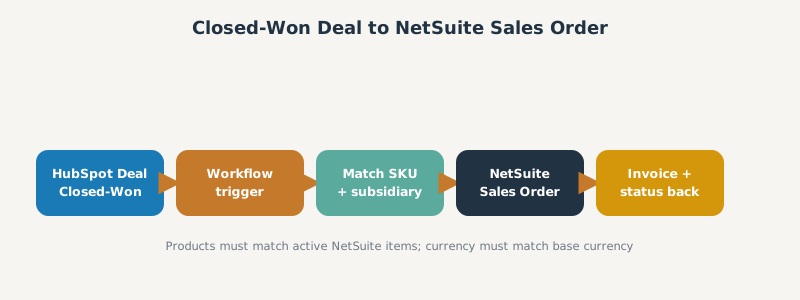
To create NetSuite sales orders automatically, use a HubSpot deal workflow that fires on closed-won, or the manual create-sales-order action on the deal. For the order to succeed, the products on the deal must match active NetSuite items by SKU, the HubSpot currency must match the NetSuite base currency, and a subsidiary must be selected. Build a sample sales order in NetSuite first to discover every mandatory field your instance requires.
Synchronizing Customer Records Automatically
Set the connector to create or update the NetSuite customer from the deal’s first associated company or contact. Because NetSuite needs exactly one customer per order and uses only the first association, keep your deal associations clean so orders route to the right entity, and apply deduplication rules so you do not create a second customer for an account that already exists.
Testing and Validating the Data Flow
Never switch a HubSpot NetSuite integration straight to production. Test the data flow end to end first.
| Test | What to confirm |
|---|---|
| Contact sync | A new HubSpot contact matches or creates the right NetSuite record |
| Dedup | Re-syncing does not create duplicate customers |
| Deal to sales order | A closed-won deal creates a sales order with correct line items |
| Field direction | Each field updates only from its owning system |
| Read-back | Invoice and payment status flow back into HubSpot |
Run these in a sandbox, reconcile record counts, then move to a real-time sync for fast-moving objects (contacts and deals) and a scheduled batch sync for heavier objects (products, orders, invoices) to stay within NetSuite API limits. Confirm the bi-directional data flow works in both directions before you trust it: HubSpot to NetSuite for new business, and NetSuite to HubSpot for invoice and payment status.
Frequently Asked Questions
Does HubSpot have a native NetSuite integration? Yes. HubSpot offers a native NetSuite connector in its app marketplace that syncs standard objects for single-subsidiary setups. Complex needs usually move to an iPaaS or custom integration.
Can I map custom fields, or only standard fields? The native connector maps standard fields out of the box; custom property mappings require a paid HubSpot Data Hub subscription, and NetSuite internal IDs cannot be mapped.
Does it sync historical data, or only new records? You can load historical data through a planned initial import run in batches, then enable the live sync. Treat the historical load as a separate step from the ongoing real-time sync.
Can NetSuite update HubSpot properties? Yes, with a two-way sync. Set sync direction by ownership so NetSuite writes the fields it owns (such as invoice and payment status) back into HubSpot.
Do I need developers to maintain the integration? The native connector and iPaaS tools are largely no-code, but complex workflows, custom records, and API-limit tuning often need developer or RevOps support to maintain.
Fighting a live sync problem right now? We catalogued the six most-reported HubSpot NetSuite sync failures and their fixes, including which ones a config change can solve and which need an integration layer.
SWOTBee configures HubSpot to NetSuite integrations that survive real orders, not just the demo. We align your teams, map your objects, and build the workflows so your front office and back office finally share one clean data flow.
Get your 1-page renewal leakage estimate →
No call needed. Prefer to talk it through first? Book a free 30-minute discovery call →