This article is part of our Complete Guide to Building a Renewal Pipeline in HubSpot.
You can automate renewal emails in HubSpot two ways: with the Sequences tool (one-to-one sales emails sent from a rep’s inbox) or with Workflows and marketing email (one-to-many, sent from the CRM). For most renewals, a HubSpot sequence is the better fit because it feels personal, stops on reply, and creates task reminders for the sales team. This guide shows you when to use each, how to create a sequence step by step, and a renewal sequence example you can copy.
Renewal outreach lives or dies on timing and tone. Send too late and you are firefighting; send a generic marketing email and it lands like spam. Sequences in HubSpot let you send a series of targeted, timed email templates that are scheduled to send automatically, so you get a repeatable nurture motion without losing the personal touch. Of all the renewal use cases, this is the one where the sequences tool earns its place as a sales tool rather than just an automation tool.
Sequences vs Workflows vs Marketing Emails for Renewals
This is the question almost every team gets stuck on, so let’s settle it. HubSpot has three ways to send email, and they are not interchangeable:
| Tool | Sending style | Best for renewals when |
|---|---|---|
| Sequences (Sales Hub) | One-to-one, from a connected personal or team inbox | A rep owns the account and you want personalized emails that stop on reply |
| Workflows + marketing email | One-to-many, from the HubSpot portal | High volume of low-touch renewals where automation matters more than a personal email |
| Marketing email (standalone) | One-to-many broadcast | Announcements (price changes, product updates), not renewal follow-up |
The key differences: HubSpot sequences send one-to-one emails that look like they came from an individual on the sales team, enroll contacts manually (or via workflow enrollment), and automatically unenroll when the contact replies or books a meeting. Workflows send one-to-many emails on a schedule regardless of replies. For renewal follow-up emails that need a human feel, sequences usually win; for thousands of self-serve renewals, a workflow scales better.
How to Create a Renewal Email Sequence in HubSpot
Here is the step-by-step process to create a sequence for renewals.
- Navigate to Sales > Sequences in your HubSpot account and click Create sequence (you need Sales Hub Professional or Enterprise).
- Add automated emails as steps. Each email step is a timed email template. Set the delay between steps (for example, send the next email 14 days after the previous email).
- Insert personalization tokens (first name, company, renewal date, deal owner) so each email reads as a personal email, not a blast.
- Add task reminders between email sends so the rep calls or LinkedIn-messages at the right moment.
- Connect a team email address to the Conversations inbox (Office 365 or Gmail). Sequence emails come from that connected inbox, which is why they feel one-to-one.
- Enroll contacts. Open the contact record and enroll, or use workflow enrollment to enroll contacts in a sequence automatically when a renewal deal hits a stage. Connecting your inbox to HubSpot is what lets each email in the sequence send the email from a real person; without an address connected to the Conversations inbox, the sequence cannot send.
Once live, the sequences dashboard shows enrollments, open rates, and reply rate so you can track sequence performance.
A Renewal Email Sequence Example (Copy This)
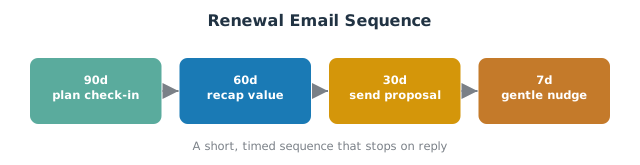
A renewal sequence does not need many emails. Four well-timed, targeted emails beat ten generic ones. Here is a proven structure that maps to the renewal window:
| Step | Timing | Purpose | Tone |
|---|---|---|---|
| Email 1 | 90 days out | “Your renewal is coming up, let’s plan a check-in” + meeting link | Helpful, low pressure |
| Email 2 | 60 days out | Recap value delivered this year (ROI, outcomes), confirm terms | Value-led |
| Email 3 | 30 days out | Send the renewal proposal, book a meeting to walk through it | Direct |
| Email 4 | 7 days out | Gentle nudge: “anything blocking the renewal?” | Personal, short |
Add a meeting link in every email so a contact can book time in one click. Because a sequence stops on reply, anyone who responds drops out automatically and the rep takes over the conversation. Pair this customer-facing series with the internal renewal reminders that alert your team, and the 90-60-30 task cadence that keeps reps accountable.
Send Limits and Setup Requirements
A few HubSpot constraints to plan around:
- Daily send limits. Sequence emails count toward your connected inbox send limits (typically up to a few hundred per day depending on your HubSpot and email provider). High-volume renewal programs can hit these limits, which is a sign you should move that segment to a workflow instead.
- Connected inbox required. You must have a personal or team email address connected to HubSpot; sequences cannot send from an unconnected address.
- Number of sequences and enrollments. There are limits on active sequence enrollments per user. Check your subscription level before rolling out widely.
Best Practices for Renewal Sequences
- Use personalization tokens, not mail-merge filler. A renewal email that references the actual renewal date and outcomes earns far higher reply rates.
- Stop on reply, always. Never let a contact who already responded keep receiving scheduled emails. Sequences handle this; if you use a workflow, add an unenroll trigger so emails stop when the renewal closes.
- Mind GDPR and subscription types. If you send these as marketing emails through a workflow, contacts can unsubscribe and you may need a dedicated subscription type. One-to-one sequence emails are treated as sales emails, which is part of why they suit renewals.
- Keep it short and one-to-one in feel. The goal is a reply or a booked meeting, not a newsletter.
- Watch open rates and reply rate. If opens are healthy but replies are low, the ask is unclear. If opens are low, fix the subject line or the sending address.
Tracking Sequence Performance
Use the sequences dashboard and HubSpot analytics to monitor each sequence: enrollments, open rates, reply rate, and meetings booked. Compare sequence performance across segments so you can retire the emails that get ignored and double down on the ones that book meetings. Feed at-risk signals into your renewal risk scoring so low engagement triggers a human save play, not just another email.
Frequently Asked Questions
What is the difference between HubSpot workflows and sequences? Sequences send one-to-one sales emails from a connected inbox and stop when the contact replies. Workflows send one-to-many automated emails on a schedule and keep going regardless of replies. Use sequences for personal renewal outreach, workflows for high-volume automation.
Can I use sequences in the free version of HubSpot? No. Sequences require Sales Hub Professional or Enterprise. On free or Starter, use marketing email plus a workflow instead.
How many emails should be in a renewal sequence? Three to five. A 90/60/30/7-day structure covers the renewal window without overwhelming the contact.
What are the send limits for HubSpot sequences? Sequence emails count against your connected inbox daily send limit (a few hundred per day, depending on provider and plan). Large renewal volumes should move to a workflow.
Can HubSpot enroll contacts in a sequence automatically? Yes. Use workflow enrollment to enroll contacts in a sequence when a renewal deal reaches a defined stage, so the cadence starts without manual effort.
A sequence handles the customer-facing emails; the internal team still needs its own alerts. See our comparison of contract renewal reminder software for the internal 90/60/30 cadence that should run alongside this sequence, not instead of it.
A renewal sequence is easy to start and easy to get wrong: the wrong tool, missed send limits, or emails that keep firing after a customer replies. SWOTBee builds renewal email automation and full renewal pipelines for mid-market companies across Energy, Manufacturing, and SaaS.
Get your 1-page renewal leakage estimate →
No call needed. Prefer to talk it through first? Book a free 30-minute discovery call →