This guide supports our HubSpot customer contract document integration hub.
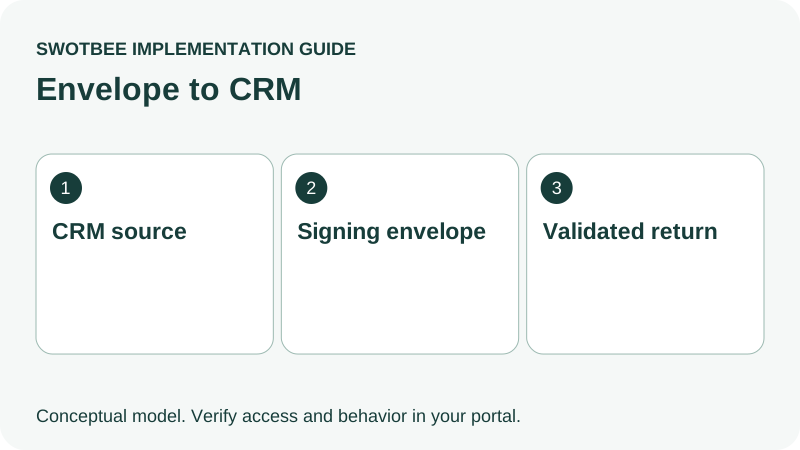
The HubSpot DocuSign integration lets your team prepare and track signing envelopes from CRM records. Start by connecting the right sender, mapping template inputs and testing recipients. Then verify the specific information your business needs after signing: an envelope status, an executed file and customer-entered field values are different handoffs.
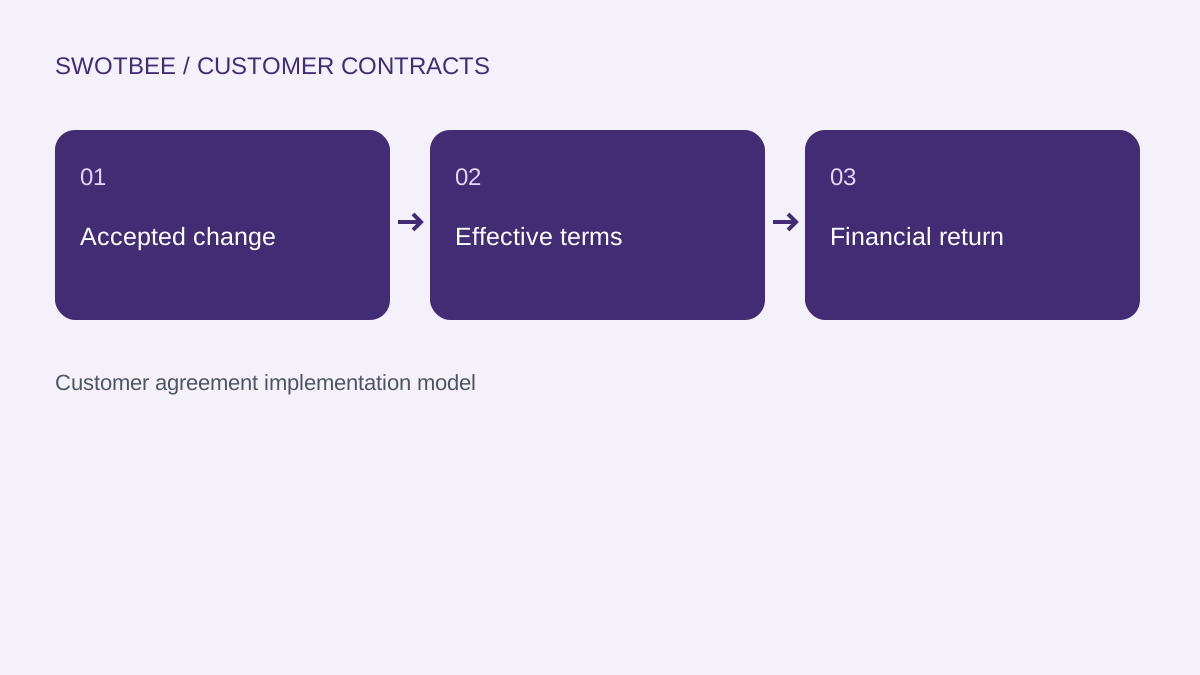
A completed envelope does not, by itself, show that the agreed start date reached the correct customer agreement. That distinction matters when sales, delivery and finance depend on the same terms.
Three things you can take away:
- A setup brief: use the access checks and connection steps to identify the senders, template, recipient roles and permissions your workflow needs.
- An envelope-to-CRM mapping worksheet: copy the filled example to specify the agreement, document version and signed values that must reach the correct record.
- A signing and writeback acceptance checklist: test completion, missing matches and repeated events before deciding whether the connector meets your requirements or needs an additional return process.
Start with one agreement and a second agreement for the same customer. Record the expected destination values before testing; success means the intended agreement updates and the other remains unchanged.
What does the HubSpot DocuSign integration do?
It connects CRM records to signing envelopes, with a bounded set of preparation and tracking functions. Evaluate the exact HubSpot app described here; another marketplace connector may behave differently.
According to HubSpot’s connection documentation, you can create, customize, send and track DocuSign envelopes from HubSpot contacts, companies and deals. HubSpot properties can populate envelope fields. HubSpot explicitly distinguishes this from full-record data sync between DocuSign and HubSpot.
Use four separate checks when demonstrating the integration:
| Handoff | Evidence to request |
|---|---|
| CRM to envelope | The intended template contains the correct source values |
| Envelope progress | The intended CRM record shows the relevant signing activity |
| Executed document | Authorized users can access the completed version |
| Signed terms to CRM | Each required destination field contains the validated agreed value |
The legal document remains in the signing process. A commercial HubSpot Contract records the revenue commitment; a deal tracks the opportunity; a subscription represents a billing or reporting arrangement depending on the chosen flow. Use the contract architecture guide to settle those responsibilities.
What access do you need?
Check installer permissions, each sender’s account and the entitlement for each automation. Installing an app and enabling a workflow are separate steps.
HubSpot’s connection guide requires a paid DocuSign plan, DocuSign administrator access and HubSpot Super Admin or App Marketplace permissions. Each HubSpot user connects their own DocuSign user. Custom property mapping requires DocuSign Business Pro or higher; mapped DocuSign fields must be text fields with unique tooltips.
The usage guide lists Professional or Enterprise subscriptions in the supported hubs for workflows. A working manual envelope on a Starter portal does not prove the same portal can run the intended automatic sending process.
Record the installer, authorized senders, template owner and exception owner. Check contracted envelope allowances and account-specific API or Connect access before proposing custom middleware. A connector demonstration is not a license quotation.
How do you connect HubSpot and DocuSign?
Install the documented DocuSign app from HubSpot Marketplace, authorize the intended HubSpot account and connect each sender. Start with a manually prepared pilot before deciding which sends to automate.
Follow HubSpot’s installation instructions, then use this configuration sequence:
- Record the HubSpot account and DocuSign account being connected.
- Connect the people who will actually send agreements.
- Confirm the DocuSign card is available on the intended HubSpot record, such as the pilot deal record.
- Select one approved template and a clearly identified pilot deal.
- Review the generated envelope before sending to internal test recipients.
- Inspect both the DocuSign envelope and its HubSpot association after completion.
To review sender connections and field mapping, open Settings > Integrations > Connected apps > DocuSign in your HubSpot account. The documented settings include Connected users and Property Mappings. Check the HubSpot users who will actually send, rather than treating installation by an administrator as a connection for everyone.
Capture the expected evidence before the test. “The card loaded” proves connectivity; “the correct agreement version reached the correct recipients and returned the required data” proves more of the business handoff.
How do you map HubSpot properties into DocuSign envelope fields?
Map approved HubSpot properties into the template, then verify the generated DocuSign envelope. Treat a customer-editable custom field separately from a seller-provided value.
The HubSpot template guide describes predefined HubSpot fields in DocuSign templates. Source-object context matters; fields added ad hoc in the HubSpot editor do not automatically acquire the template’s population behavior.
Build a short input specification:
| Input | Recommended source | Review question |
|---|---|---|
| Customer legal name | Reviewed customer entity field | Is this the signer entity or merely the brand name? |
| Scope/SOW reference | Approved agreement version | Is it the current scope? |
| Effective date | Agreed commercial input | May the signer change it? |
| Price and billing frequency | Approved commercial schedule | Does the document express recurrence correctly? |
| Agreement key | Stable agreement identifier | Can this envelope later be matched without guessing? |
These are design labels, not ready-made connector field names. In Property Mappings, select the source object and link each supported DocuSign field to the corresponding HubSpot property. For a custom field, confirm the documented text type, unique tooltip and Business Pro-or-higher access. Do not assume a text-field merge is a complete product, tax or recurring-pricing integration.
If two agreements share a customer, store the chosen agreement identity before sending. A company name or contact email cannot distinguish a support renewal from a separate project SOW.
How do you handle recipients and approvals?
Test recipient roles and order against your actual agreement, and keep internal approval separate from customer signature. A contact association is not permission to send someone a legal document.
HubSpot’s workflow documentation has different recipient rules for contact-, deal- and company-based actions. Contact workflows have a single enrolled-contact constraint; company workflows need recipients configured in DocuSign. Deal templates must fit the available associated contacts.
For an illustrative two-signer service agreement, identify the customer signer and your countersigner by role. Test the case where three contacts are associated with the deal but only two should receive the agreement. Check the final recipient list before turning on a workflow.
Define which changes require approval again. A revised price, liability clause or recipient should follow your agreed review policy. Approval evidence, delivery evidence and completed-signature evidence should remain distinguishable. Our document integration hub covers the broader approval model.
Does DocuSign send signed field values back to HubSpot?
Do not infer signed-field writeback from outbound template mapping. Verify every required return value on the destination record, using the exact connector and account configuration you intend to operate.
The saved research contains a user who could generate documents but reported that customer-entered values did not return, and another who struggled to use a visible envelope-to-deal association in automation. Those are reported workflow problems, not proof that all DocuSign connectors lack writeback.
If the supported app does not fulfill your required return, compare a reviewed manual step, a suitable connector action and a scoped custom integration. DocuSign Connect provides event notifications for integration design, but its existence does not establish that your account, payload and CRM target support every desired update.
Specify the event, envelope/version, match key, validation rule and owner. Keep the existing connector when it already satisfies the required job. Additional automation should address a demonstrated gap.
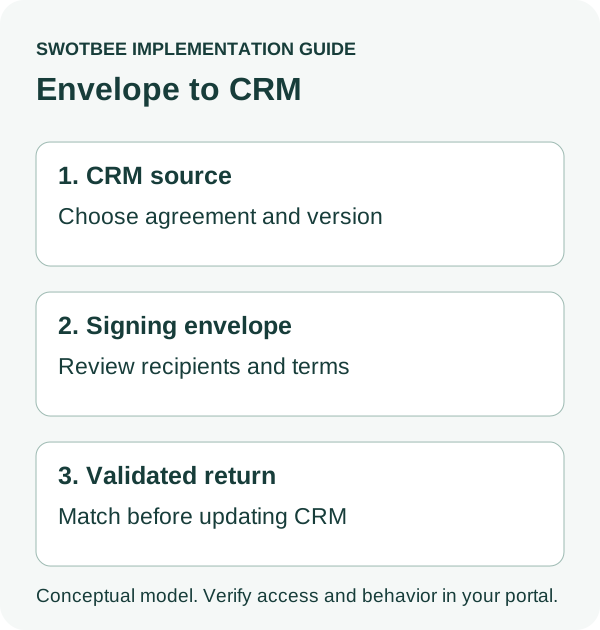
Copy this envelope-to-CRM mapping worksheet
Use this worksheet to define one completion handoff, including a second agreement for the same customer. The entries are illustrative implementation specifications, not native property names or tested API payloads.
| Specification | Filled example | Acceptance condition |
|---|---|---|
| Envelope and version | ENV-42, approved version 2 | Completion belongs to the current version |
| Intended target | Agreement A-101, originating deal 501 | A-102/deal 502 is unchanged |
| Completion gate | All required signatures complete | A partial signature cannot release billing |
| Executed file | Restricted-access completed-document reference | Intended users can open the executed version |
| Returned start date | 1 November 2026, reviewer approved | Valid date matches A-101’s agreed terms |
| Field ownership | Reviewed agreement controls start date | Company master data is not overwritten accidentally |
| Processing identity | Envelope + version + event purpose | Repeated event produces no duplicate handoff |
| Missing match | Hold and assign to RevOps | No record is chosen by customer name alone |
For an MSP, A-101 might cover support and A-102 a migration project. For a consultancy, they might be two SOWs. The same matching problem occurs across industries.
Add a separate column for actual connector evidence: destination field, observed value, screenshot or permitted test reference, test date and reviewer. This makes a demo reviewable. Never put full legal documents or personal signer information in a public issue or shared SEO artifact.
Why is the envelope completed but the CRM handoff incomplete?
Locate the failed step before reconnecting apps or sending another envelope. Progress visibility, matching and field acceptance can fail independently.
| Symptom | First check | Resolution evidence |
|---|---|---|
| Sender cannot prepare envelope | Connected user and account permissions | Intended sender can use the approved template |
| Blank merged value | Source object, mapped property and template field | Correct pilot value appears before sending |
| Wrong/missing signer | Recipient roles and associated contacts | Recipient list matches the approval brief |
| Completed but missing term | Actual return action and destination field | Agreed term is validated on the right agreement |
| Wrong deal updated | Envelope identity and match rule | Second agreement remains untouched |
| Duplicate downstream task | Re-enrollment and replay behavior | Repeated completion does not repeat the action |
For added webhook logic, verify authenticity and message integrity using the provider’s documented security approach. DocuSign’s HMAC guidance explains that control. Authentication does not validate which customer agreement should be updated; matching still needs its own test.
Keep an exception row with envelope ID, intended target, failed step, owner and next action. Repair the failed return without automatically reissuing a document or restarting billing.
Can you import historical DocuSign envelopes?
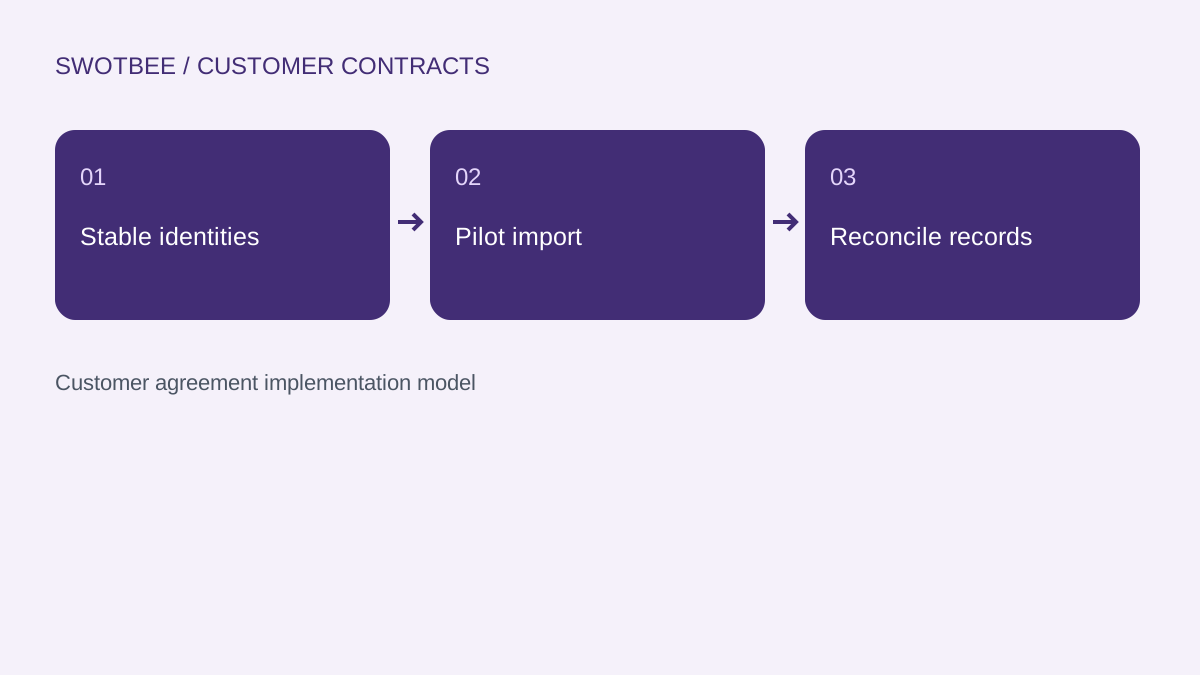
Yes, the documented app supports historical envelope import. Backfill still needs a separate matching and term-review plan.
HubSpot’s usage guide documents importing envelopes and attaching existing envelopes to records. Inspect what that creates in your portal before assuming the import includes reviewed renewal dates, billing terms or complete agreement associations.
Pilot one old externally created envelope and one envelope created from HubSpot. Compare source identity, executed file, associated agreement and missing fields. Exclude historical completions from current onboarding or invoice automation unless that behavior is explicitly intended.
Use the renewal properties guide for structured agreement dates. A signed PDF is evidence; it is not already a verified notice deadline.
What should pass before you enable the workflow?
Run creation, signature and required CRM return as one acceptance sequence. Include failures and repeated events as well as the successful example.
- Actual senders have the required connections and licenses.
- Missing required data enters a named review path.
- Template values and recipient roles match the approved version.
- Partial, completed, declined and voided outcomes remain distinct.
- Completed evidence resolves to the intended agreement and deal. Use the HubSpot document tracking guide to distinguish document views from envelope status and signed evidence.
- Required customer-entered values are reviewed and accepted at the destination.
- A second agreement for the customer remains unchanged.
- Duplicate or older events do not repeat or reverse the handoff.
- A revoked permission or missing match creates an owned exception.
- Historical imports do not initiate unintended sending or billing.
Then test the quote-to-cash handoff if completion releases invoices, and the renewal process if it supplies renewal dates.
Frequently Asked Questions
Does HubSpot have built-in document signing?
HubSpot supports e-signatures on eligible quotes, with Revenue Hub tier, seat and request-allowance conditions. Evaluate that route when the quote format fits your approved agreement. It is a separate option from DocuSign envelopes and legal-document workflows.
Can I use DocuSign templates with HubSpot deal fields?
Yes, the documented integration supports CRM values in template fields. Check source context, custom mapping eligibility and the generated envelope before sending.
Is the HubSpot DocuSign integration free?
Do not treat app installation as the whole cost. The documented path requires a paid DocuSign plan; custom mapping and HubSpot workflows have additional plan conditions. Check your actual agreement and allowances.
Will an envelope association automatically update a commercial Contract?
Do not assume it. The documented envelope UI uses contacts, companies and deals. Verify a supported route to any separate commercial Contract fields required by your design.
Do I need custom middleware?
Only if the supported configuration cannot deliver a required handoff and the alternative is justified. Prove the gap with the worksheet before adding another system.
Start with the agreement you need to operate, then prove the signing and CRM handoff together.