This guide supports our HubSpot Contract Document Integrations pillar. It focuses on the specific implementation job below.
HubSpot document tracking shows engagement with shared sales documents. Upload approved collateral, share a tracked link and review viewing activity. A view is a follow-up signal, not proof of a signed customer agreement. Keep signature evidence, the executed version and the commercial Contract state in their appropriate records.
Three things you can take away:
- An evidence table for viewed, signed and CRM-updated states.
- A responsibility map for documents and agreement records.
- An access and writeback acceptance checklist.
Start here: select one public service overview and one private customer agreement. Decide which tool is appropriate for each before uploading either file.
Download: HubSpot document tracking workbook (Excel). Use the blank evidence map, filled example and test plan. No signup is required.
What does native HubSpot document tracking do?
The Documents tool provides a shared sales-content library and engagement tracking. It helps a seller see interest in collateral and decide when to follow up.
HubSpot’s document tracking product page describes sharing sales material and reviewing engagement. That job is different from document execution, legal version management and contract billing.
A service overview viewed by a prospect can prompt a useful conversation about scope. It does not show that the prospect approved pricing or that an agreement became effective. This guide covers that native tracking intent first, then explains the boundary with our contract document integration pillar.
How do you upload and share a tracked sales document?
Upload approved collateral in Sales > Documents, create a recipient link and review the tracking options before sharing. Test the intended recipient experience with non-sensitive content.
According to HubSpot’s Documents instructions, upload and sharing require an assigned Core, Sales or Service seat and Sales access. The current availability table lists supported Sales Hub, Service Hub and Smart CRM subscriptions. Check the account’s entitlement and limits rather than relying on an older free-plan tutorial.
- Confirm that the file is approved for public sales sharing.
- Open Sales > Documents and upload the supported file.
- Create a link for the intended recipient.
- Choose the email-identification and download settings.
- Test the link and record the observed activity.
- Share through the approved customer communication process.
For email-template links, check the guide’s email-to-view requirement for tracking. Do not assume that pasting any file URL into an email provides the same evidence as a configured tracked document link.
How should a sales team organize its document library?
Organize approved sales content so the seller can choose the correct file and version before sharing it. A useful library answers who owns the content, which customer question it addresses and when it needs review.
For example, keep service overviews separate from implementation explainers. Give each collateral file a clear title, audience, owner and review date. Retire superseded versions through the team’s approved process, while retaining references needed to explain earlier customer communication.
Use the workbook’s public-collateral field to register the selected file and its purpose. If a PDF contains private rates or customer-specific terms, route it to the approved private process instead of assuming that its file format makes public sharing suitable.
How do you review document views and follow up?
Review engagement in context, then choose a useful next conversation. A document tracking signal is most valuable when it helps the seller answer a customer question.
For DOC-10, record the shared version, intended recipient, observed viewing activity and follow-up owner. Ask whether the service overview answered the buyer’s scope question; do not infer purchasing approval from an open. HubSpot’s document tracking overview describes this sales-engagement job.
The next task might be to clarify a service boundary or schedule a technical discussion. Keep that sales action separate from a signature-completion workflow. If the link was forwarded or the viewer is unidentified, record that limitation before acting on the signal.
Are HubSpot Documents suitable for confidential customer contracts?
The native sales Documents tool should not be used for sensitive or confidential information. Choose an approved access-controlled document or signing route for private agreements.
HubSpot’s official guidance states that these documents are publicly shared and that a shareable link makes the document available on the internet. An email-entry prompt should not be treated as proof that a file is a private contract repository.
For an MSP, a public support brochure can be appropriate collateral. A signed SOW containing customer rates, security responsibilities or confidential service details needs the approved private-document route. Record that decision in the workbook before uploading files.
What does each document state actually prove?
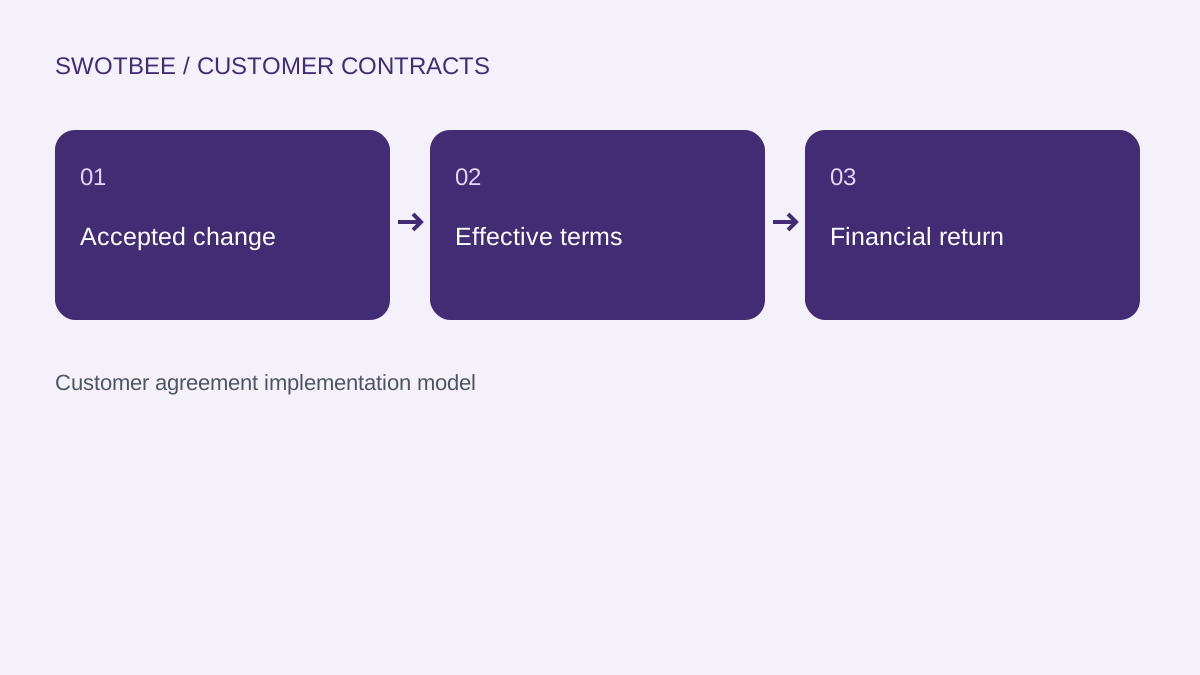
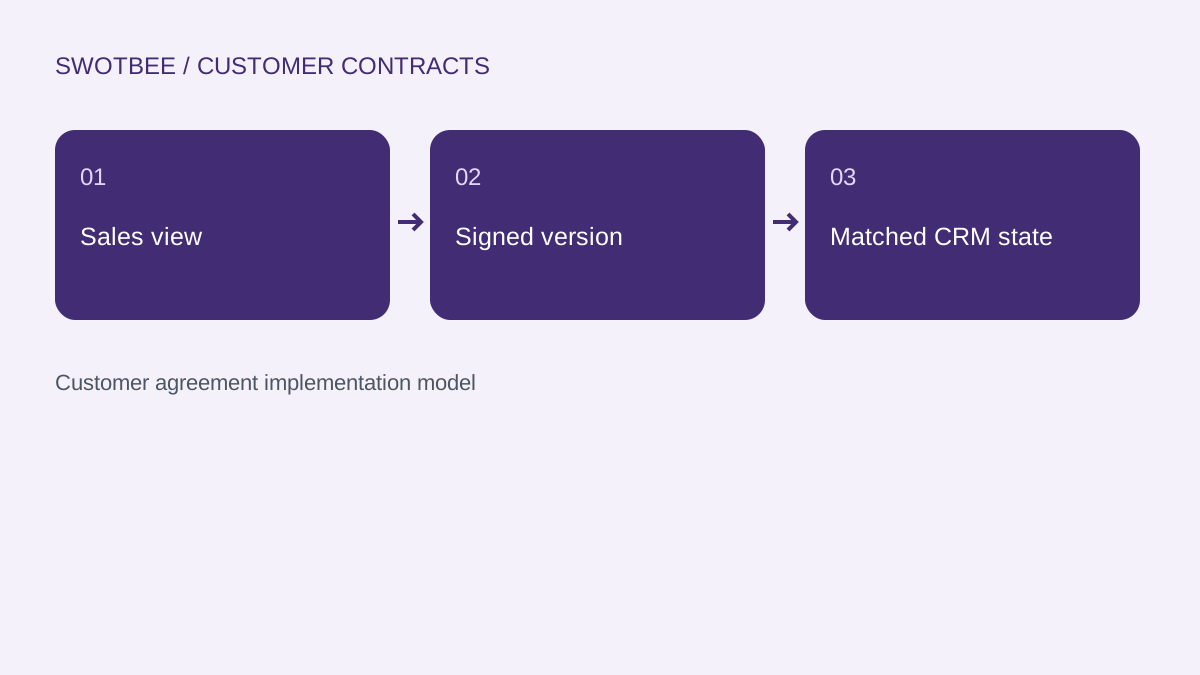
Each state proves one part of the journey. Require evidence from the system responsible for that state instead of promoting a viewing signal into legal acceptance.
| State | Useful evidence | What it does not establish |
|---|---|---|
| Sent | Link or delivery event and recipient | That the intended person read or accepted it |
| Viewed | Observed viewing activity | Signature, identity certainty or approval |
| Signed / completed | Provider completion and executed version | That CRM or accounting processed the return |
| CRM updated | Correct agreement, version and returned state | That an invoice was issued or collected |
| Billed | Verified billing-system transaction | That payment settled |
The distinctions apply whether sales uses native quotes, PandaDoc, DocuSign or another approved tool. Their events and permissions differ; map the actual provider event rather than assuming a universal status vocabulary.
How reliable is viewer identity and activity?
Viewing activity is useful engagement evidence, but its meaning depends on link settings and how the link was opened or forwarded. Verify the observed behavior with your sharing method.
The HubSpot Documents guide explains that identification depends on email entry and previous document interactions. It also notes that a third-party messaging send can count as a view. Treat an activity count as a tool observation, not a definitive count of human readers or approved signers.
Test an intended recipient, a forwarded link and a fresh browser session. Record which entries are identified, which are anonymous and what notifications the seller receives. Avoid workflow decisions that require stronger identity evidence than the signal provides.
Which system should own each document and record?
Give every artifact a clear owner and return path. That keeps useful sales tracking without overloading it as the agreement system.
| Artifact or state | Suggested responsibility | CRM reference |
|---|---|---|
| Public sales collateral | Sales-content owner | Document/link and related contact |
| Negotiated legal draft | Legal/document workflow | Draft identity and version |
| Executed agreement | Approved signing or document repository | Executed version and permitted link |
| Commercial commitment | HubSpot Contract or chosen agreement model | Stable agreement identity |
| Sales opportunity | Deal | Customer, agreement and term association |
| Billing schedule | Configured subscription/billing authority | External or native billing identity |
These are implementation choices, not mandatory product architecture. Use our HubSpot contract management guide to choose the agreement model. Keep private file access consistent with the repository’s policy even when the CRM holds a link.
How do you connect signing evidence to the correct agreement?
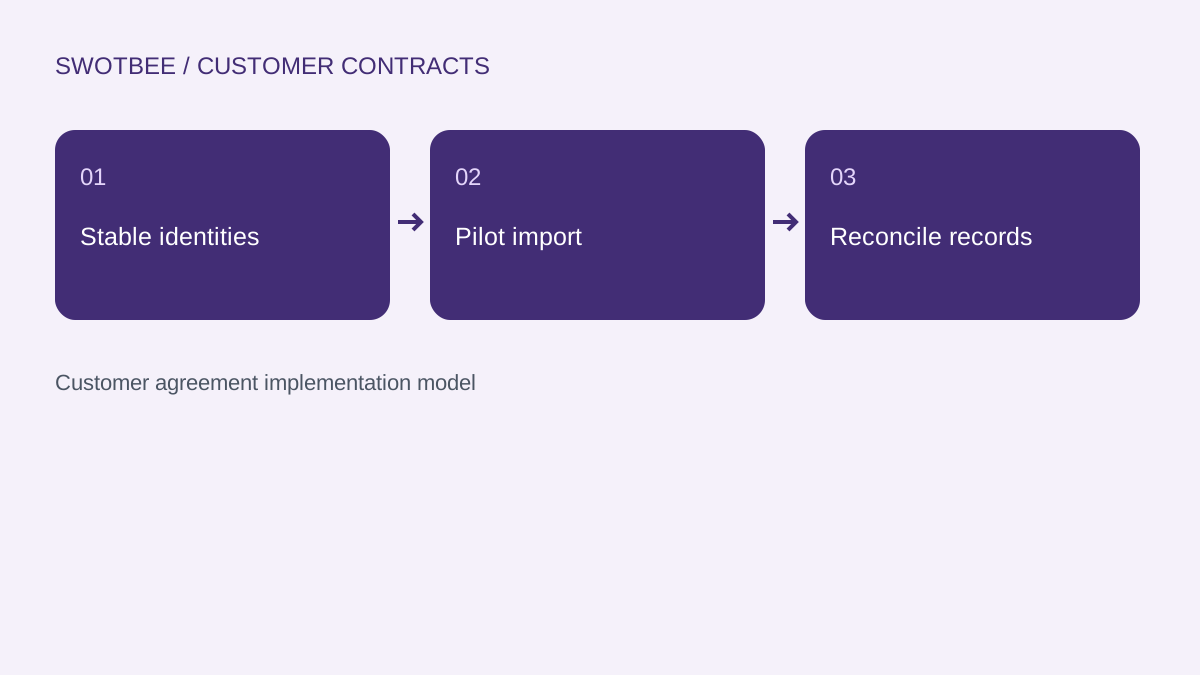
Match the completed provider document to the intended agreement and accepted version before updating commercial state. A customer-level association alone is insufficient when that customer has several agreements.
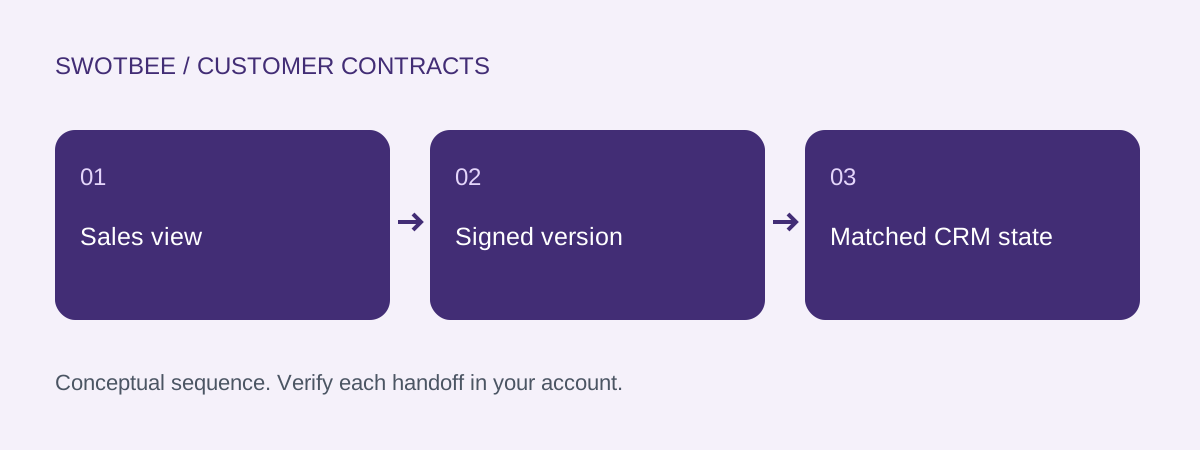
In this illustrative example, document DOC-10 is a viewed service overview. Signing envelope ENV-42 concerns support agreement A-101, SOW v3. The completion return must match ENV-42, A-101 and v3. It must not update the customer’s separate backup agreement A-102.
The provider-specific PandaDoc integration guide and DocuSign integration guide own installation and return mapping. The Ironclad integration guide covers a distinct legal-workflow route. Confirm the exact provider features and plans there, then test your required event and fields.
Retain the completion identity, timestamp, executed-version reference and processing result. If the return is repeated, recognize the already-processed completion. If it is unmatched, create an owned exception rather than updating the first deal found for the company.
Should you use Documents, quotes or a signing integration?
Use Documents for approved sales collateral and engagement. Use the relevant quote tool for commercial quoting and acceptance. Use a signing/document integration when the demonstrated legal-document workflow requires it.
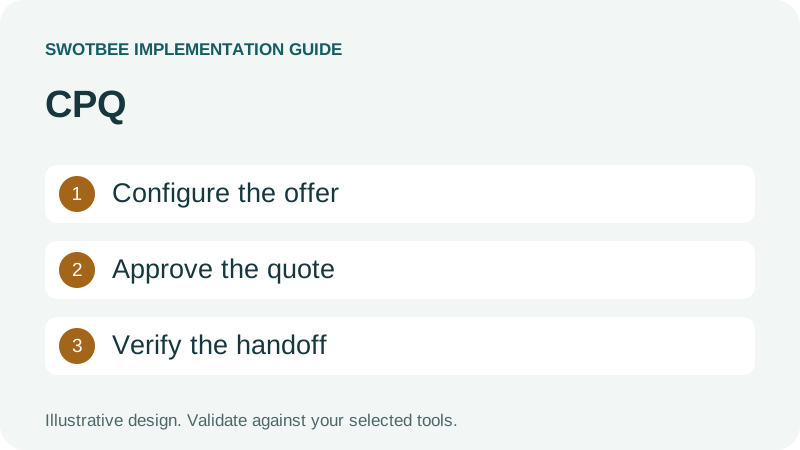
For example, a public service brochure belongs in the sales library. A configured price proposal may use HubSpot CPQ. A private negotiated agreement needs the approved document process and a verified CRM return.
This is a job-based choice, not a claim that one tool lacks every capability of another. Test legal terms, signatures, access, versioning and writeback against the required customer journey. Do not use a view count as a substitute for an accepted quote or executed agreement.
What should pass before you use document tracking?
Pass the sharing tests with harmless collateral and the agreement tests with approved test documents. The workbook keeps the two evidence paths separate.
- Native Documents access, seat and limits are verified.
- The uploaded collateral is approved for public sharing.
- Confidential agreements use the approved private route.
- Recipient email and download settings match policy.
- Intended, forwarded and fresh-session link behavior is recorded.
- View observations do not set a signed status.
- The signing provider’s required completion evidence is specified.
- The completed document matches the right agreement and version.
- A second agreement for the customer is not updated accidentally.
- Executed-file access works for the intended internal users.
- Duplicate and unmatched completion events have a tested outcome.
- CRM update and billing completion have separate evidence.
Frequently asked questions
Can HubSpot track document views?
Yes. Native Documents supports shared sales collateral and viewing activity. Check the link settings, recipient identification and the current seat and subscription conditions for the intended user.
Does a document view mean the customer signed?
No. Viewing is an engagement signal. Require completion evidence and the executed version from the approved signing or quote acceptance process before setting an accepted agreement state.
Can I share a confidential customer contract through HubSpot Documents?
HubSpot states that sales Documents are publicly shared and should not be used for sensitive or confidential information. Use the approved private document or signing route for confidential agreements.
Why might document activity not identify every viewer?
Identification depends on sharing settings, email entry and prior interactions. Forwarding and third-party messaging can affect the observed activity. Test your sharing method and do not treat a count as verified signer identity.
Which record should receive signing completion?
Match the provider document identity to the intended customer agreement and accepted version. Verify the return updates that agreement only, with separate evidence for billing and accounting.
Need help applying this to your customer agreements?
Use the workbook to document one real agreement and its expected results. If you would like to discuss the implementation, contact SwotBee for a discovery conversation.