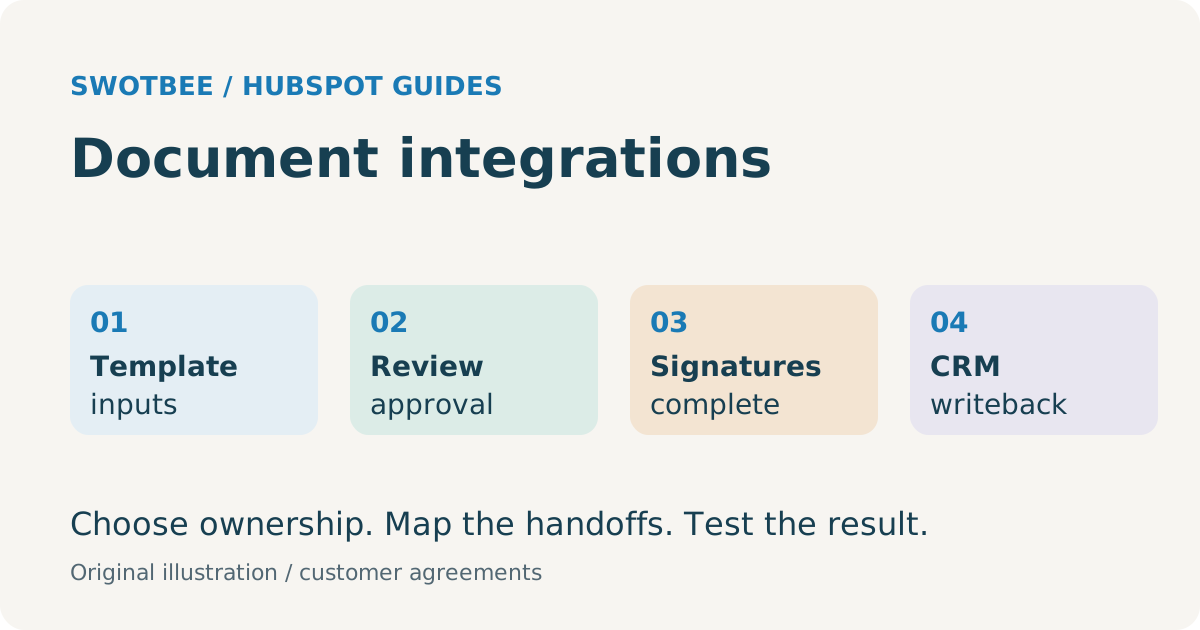
HubSpot contract document integrations connect CRM data to customer agreements and return the information needed after signature. A complete design specifies the template, approval gate, recipients, document identity, final status, returned fields and recovery process. PandaDoc and DocuSign have documented connectors; whether either meets your needs depends on the configured workflow.
A document marked “Completed” is useful evidence. It does not tell you, on its own, whether the right customer signed, the negotiated start date reached HubSpot or finance received the approved billing terms.
For the underlying record choice, use our HubSpot contract management guide. This article focuses on the customer-document handoff.
Your takeaway: a signed-document writeback specification with a worked matching example and acceptance tests. Use it to identify exactly which fields must return, to which agreement, at which event, before buying additional integration work.
For the native quote alternative, use the HubSpot CPQ pricing and approval guide. For a legal workflow using Ironclad, see the Ironclad HubSpot integration specification, which compares the third-party MATIC connector with custom middleware and CRM return requirements.
What should a HubSpot e-signature integration workflow cover?
Cover the full sequence from validated requirements to the completed agreement and accepted CRM updates. Keep requirements approval, document delivery and signature completion as separate states.
| State | Required evidence | Example owner |
|---|---|---|
| Requirements ready | Correct customer entity, scope, products and commercial inputs | Sales or service lead |
| Approved for generation | Approved template and permitted commercial exceptions | Sales operations/legal policy owner |
| Approved for sending | Current document version and required reviewers complete | Document owner |
| Sent | Provider document ID, recipients and sending event | Authorized sender |
| Completed | Required signatures complete on the intended version | Document system |
| CRM update accepted | Matching record and required field validation passed | Integration operator |
| Downstream handoff ready | Required billing/service data available, without open blocking exceptions | Finance or delivery lead |
These are design states, not a claim that every app exposes these exact labels. Define how the chosen product’s events map to them.
An MSP might need service coverage and customer sites approved before generating an SOW. A consultancy might need the delivery scope approved before signature. Neither job is answered by a demo that starts with a finished document.
How do PandaDoc and DocuSign compare for this job?
Compare the connector’s documented objects and events with your required handoffs. Avoid selecting by a generic “two-way sync” label.
| Question | PandaDoc new experience | HubSpot’s DocuSign app |
|---|---|---|
| Where can a document start? | Contacts, companies and deals | Contacts, companies and deals |
| Commercial data into a template? | Variables and product transfer documented | Mapped CRM properties into envelope text fields documented |
| Signature status visible? | Document status tracking documented | Envelope activity/status tracking documented |
| Required plan/account checks? | Business or Enterprise; External Automations is a paid Business add-on and included with Enterprise | Paid DocuSign plan; custom property mapping requires Business Pro or higher; individual users connect |
| Approved fields returned? | Specific field/line-item automations, with configured events and type limits | Do not infer arbitrary signed-field return from outbound mapping |
| Historical coverage? | Check origin, linking and workspace coverage | Historical envelope import is documented; check imported fields and associations |
These are documentation-level comparisons, not results from a connected customer portal. See PandaDoc’s integration guide, HubSpot’s DocuSign connection guide and DocuSign usage in HubSpot.
Also test the native quote route where your approved agreement format fits. HubSpot’s quote e-signature guide documents Revenue Hub Professional/Enterprise, seat requirements and a pooled monthly request allowance. Native quoting and a separate document platform are different implementation choices.
What must happen before an agreement is sent?
Validate source data and enforce the agreed approval policy before sending. Decide whether approval belongs on the deal, quote, document or more than one of those records.
According to HubSpot’s deal approval documentation, Sales Hub Enterprise supports conditional deal approvals, an approval stage and up to ten approvers. This establishes native commercial review capability, not a complete legal clause-versioning system.
Use an approval worksheet with five entries: trigger, required reviewers, approved version, permitted edits and restart rule. For example, a discount exception may need sales-manager approval, while a changed liability clause needs the legal process defined by your team.
Test what happens if price, scope or recipients change after approval. A status left at “Approved” while the agreement has materially changed can send the wrong version. The implementation must show how approval is invalidated or repeated under your policy.
Do not advance a deal to “Agreement sent” merely because both reviewers approved it. Sending still needs its own evidence. Do not label a document “Signed” when only the first of two required signers has acted.
What should you check in a HubSpot PandaDoc integration?
Check the template’s source object, workspace, recipients and pricing representation, then test the configured return rules. The new-experience connector and the automation connection have distinct setup responsibilities.
For configuration and a filled worksheet, use the HubSpot PandaDoc setup and writeback guide.
PandaDoc’s new-experience documentation notes per-workspace setup, case-sensitive variables, EU connection initiation from PandaDoc and separate HubSpot Automations authorization to the same portal. It distinguishes pricing tables from Quote Builder: recurring HubSpot items become one-time entries in the pricing-table path.
For an illustrative annual support SOW, compare the generated document against the source record: customer legal name, service coverage, signer role, effective date, recurring charge, billing frequency and any one-time onboarding fee. A total that happens to match is insufficient if recurring and one-time amounts have lost their meaning.
According to PandaDoc’s HubSpot automations guide, PDF attachment and field/line-item return can be triggered at configured statuses such as Sent or Completed. Supported return field types include Text, Date, Dropdown, Checkbox and Radio Button; permissions and format validation matter.
Choose the return event by field purpose. A “Sent” update may be suitable for proposal tracking, while final agreed terms should follow the completion policy. Test company-field updates too: an agreement-specific edit should not silently replace a customer master value shared by other agreements.
What should you check in a HubSpot DocuSign integration?
Check sender connectivity, template fields, recipients and the actual information available after completion. Separate CRM-to-envelope population from envelope-to-CRM field return.
Use the HubSpot DocuSign setup and CRM writeback guide to test templates, recipients and the required return.
HubSpot’s connection guide says the app is not full-record data sync. Custom mapped DocuSign fields require text type and unique tooltips. Confirm which HubSpot user is connected and permitted to send, rather than assuming an administrator’s installation connects the entire team.
The official usage guide documents historical envelopes and event-driven workflows, with Professional/Enterprise workflow requirements across the listed hubs. Recipient behavior differs by source object; test the intended deal contacts or preconfigured company-template recipients.
For a two-signer agreement, demonstrate both recipient assignments and completion. Then inspect the HubSpot record: which envelope status, completed-document reference and required terms are available? If a customer enters a revised address or date, outbound field mapping alone does not prove that value will return.
Where required field extraction or matching falls outside the connector, scope a separate solution only after verifying the provider API, account access and license terms. Do not promise unrestricted synchronization or guaranteed avoidance of a higher DocuSign tier.
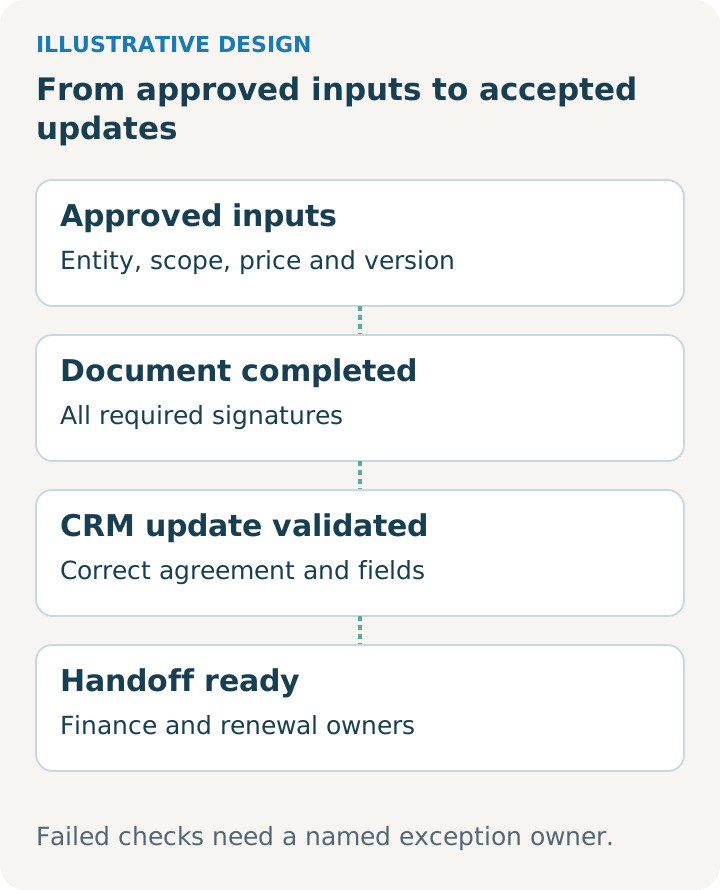
Illustrative design. Use it alongside the worksheet and adapt it to your reviewed agreement and selected tools.
For cross-platform field authority and recovery controls, use our CLM and CRM integration framework. The contract automation guide covers the wider process; this guide applies those decisions to HubSpot document connectors.
How do you return signed data to the correct CRM record?
Use durable document and CRM identifiers, explicit field ownership and validation rules. Customer name or signer email alone is unsafe when one customer has several open agreements.
Copy this mapping worksheet into your implementation brief. The fields below are design labels, not verified connector property names or API syntax.
| Returned item | Match/ownership rule | Acceptance condition |
|---|---|---|
| Provider document/envelope ID | Link to the originating CRM record at generation | One ID resolves to one intended agreement version |
| HubSpot record ID and Agreement Key | Preserve both where the supported integration allows | Two deals for one company never receive each other’s terms |
| Document status | Document system owns signing state | Sent, partial signature, completed, declined and voided remain distinct |
| Completed document reference | Executed version only | Accessible to the intended users; draft reference retained separately |
| Effective date | Approved completed agreement or designated reviewer | Valid date; correct agreement and version |
| Notice deadline | Reviewed clause interpretation | Not inferred from completion date |
| Price and line items | Designated commercial authority | Currency, quantity, recurrence and discount reconcile |
| Last processed event/version | Integration processing record where supported | Duplicate or older events do not reverse the current state |
Keep document-specific facts on the identified agreement or document record. A company-level “latest contract status” may be a summary, but it cannot establish the state of every concurrent agreement.
Here is a filled example to adapt. The identifiers and field labels are illustrative, not provider API syntax or tested native mappings:
| Specification entry | Example |
|---|---|
| Source and target | Provider document DOC-42, version 2; agreement A-101; originating HubSpot deal 501 |
| Required event | All required signatures completed on version 2 |
| Returned data | Executed-file reference, completion status and approved effective date |
| Validation | DOC-42 resolves to A-101/501; version 2 is current; effective date is present and reviewed |
| Rejected case | Same company has deal 502 for A-102; no match by company name alone |
| Retry result | Same document/version completion updates the existing result once; no new agreement |
| Missing mapping | Hold required writeback as an exception assigned to RevOps; do not mark the downstream handoff ready |
Bring this specification to a connector demonstration. Ask the demonstrator to show the destination fields, repeat the completion event and introduce a second agreement for the same customer. That tests the required result beyond a visible signature badge.
How should you handle historical agreements?
Define backfill separately from the new-document workflow. Decide whether you need files, signature events, extracted terms, CRM associations or all four.
Historical envelope import exists in the documented DocuSign path. That does not establish that every historical agreement has the required CRM match or term fields. PandaDoc coverage should be checked against document origin, linking and workspace behavior rather than presumed from status visibility.
Create a historical intake table: source ID, agreement key, CRM target, executed-file location, known dates, missing terms, reviewer and migration status. Test an old externally created agreement alongside a new CRM-generated one.
If terms must be transcribed or extracted from PDFs, preserve the original evidence and a human review status. A file attachment is not structured renewal data. Backfill should not enroll every old completed agreement into current onboarding or invoicing automation.
What happens when an event fails or arrives twice?
The workflow needs an exception queue, safe retries and a way to confirm the final state. A retry should repeat the intended update without sending another agreement or creating another invoice.
For any added integration logic, design duplicate prevention around provider ID, agreement version and event purpose. Verify what the native connector already does; do not assume custom safeguards are present merely because a UI shows the event.
An exception row should record target record, source document, event time, failed step, reason, next action and owner. “Missing required date,” “ambiguous CRM match” and “permission revoked” need different resolutions.
Test out-of-order events and replacement documents. If an old draft’s “Sent” event arrives after the approved version is completed, it should not move the deal backward. Replacing a document should preserve which version controls the commercial handoff.
Track the number of completed documents awaiting required CRM updates and the age of unresolved exceptions. A successful webhook delivery or visible timeline activity does not establish that the destination fields passed validation.
What should pass in an end-to-end acceptance test?
Run the test from captured requirements through signature and accepted CRM updates. Use representative agreement variations and explicit failures before handing over the process.
Practical checklist:
- Correct legal entity, payer and source record populate the approved template.
- Missing required data prevents sending or enters a named review path.
- Rejection and post-approval edits follow the documented approval policy.
- Two required signers map to the intended people; partial signature is not completion.
- One-time and recurring charges remain distinguishable in the generated document.
- Required completed fields reach the intended deal/agreement and pass type validation.
- Two agreements on one customer remain separate during writeback.
- Declined, expired, voided and replacement documents do not trigger an incorrect won deal.
- Repeated and older events do not create duplicate commitments or reverse state.
- Revoked access and invalid fields produce actionable exceptions.
- Historical backfill leaves current onboarding and billing untouched unless explicitly included.
- The team receives templates, mapping rules, connection ownership and a retry runbook.
Pass approved terms to the billing design only after this gate. The HubSpot quote-to-cash guide covers that handoff; the renewal operations guide covers dates, owners and future renewal work.
For the detailed acceptance work, use native document tracking and signature evidence.
Frequently asked questions
Is installing PandaDoc or DocuSign enough? It can be enough for a simple supported workflow after template configuration and testing. More complex approval, matching or return-field needs require a separate fit assessment.
Does signing update every HubSpot field automatically? No universal promise is justified. Verify the exact return fields, types, status triggers and destination objects in the selected connector.
Does every historical envelope require custom migration? No. Test the documented historical import first, then identify any missing terms or associations that need additional work.
Is a commercial Contract record the signed agreement? No. Keep the executed document evidence distinct from the commercial commitment, related deal and billing arrangement.
Why does DocuSign create our agreement but not return customer-entered fields? Creating an envelope from CRM data and returning completed-envelope fields are different capabilities. Check the actual inbound action, field types, completion event and record match. The DocuSign section explains why outbound mapping alone is insufficient evidence. Scope an extension only for the verified missing handoff.
Can we capture requirements and approve them before generating the document? Yes, design those as explicit gates in the process. Choose where requirements are captured and who approves the current scope, then generate the document from approved inputs. Demonstrate the workflow from incomplete requirements, including rejected approval and changed terms, rather than starting with a ready-to-sign file.
Discuss your document-to-CRM workflow
SwotBee has delivered integrations involving document-signing tools. A useful discovery conversation starts with one agreement and the specific handoff that currently fails.
Request a discovery call about your document-to-HubSpot workflow. Bring your template, source object, required returned fields and current tool plans.