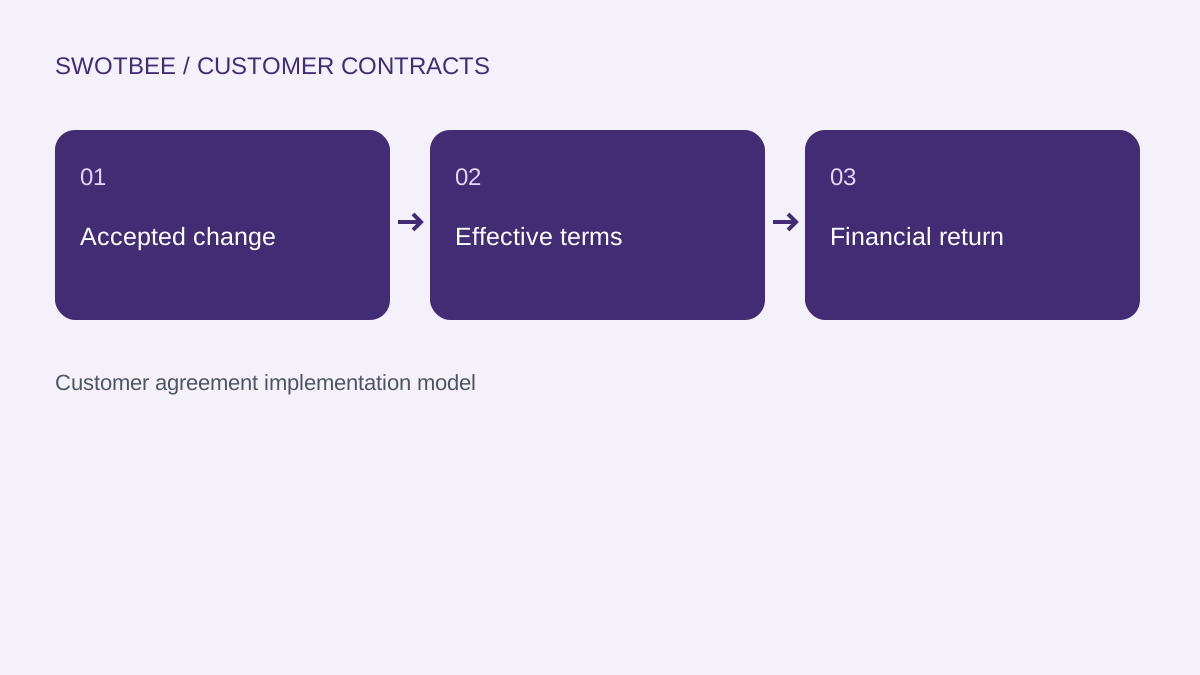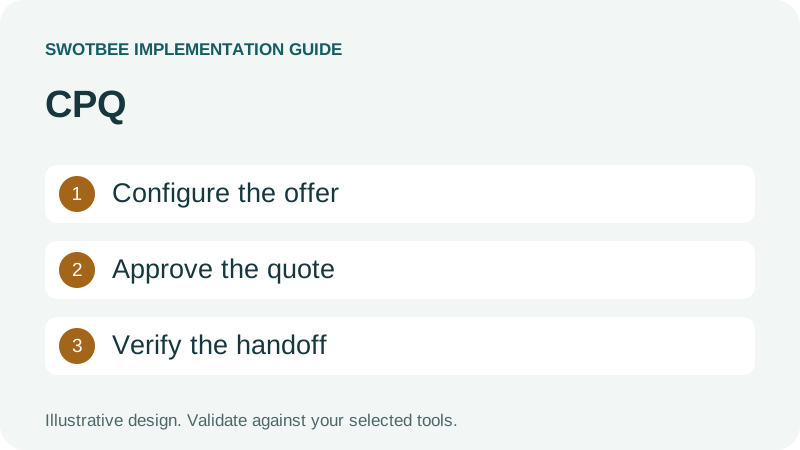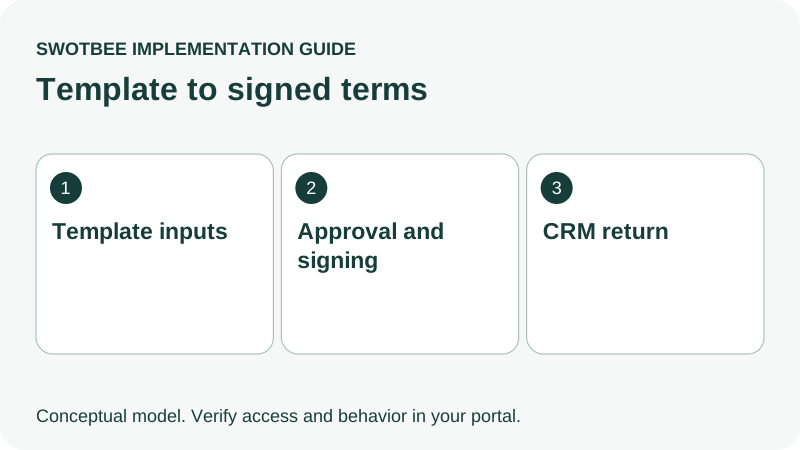
This guide supports our HubSpot customer contract document integration hub.
The HubSpot PandaDoc integration can populate customer documents from HubSpot CRM data, transfer product information and track document progress. A useful implementation also specifies approvals, recurring versus one-time pricing and configured CRM return. Test those handoffs with the actual template and workspace before assuming a signed document updates everything your team needs.
Three things you can take away:
- A template setup plan: use the connection steps and approval checks to identify the workspace, source record, template and review policy.
- A pricing validation example: check recurring and one-time line items separately, so a correct total does not hide an incorrect billing schedule.
- A CRM return worksheet and test plan: copy the setup and writeback worksheet, then use the acceptance checklist to verify final terms, file evidence and agreement matching.
Start by generating one internal pilot document with a recurring service and a one-time fee. Compare its schedule with the approved terms, then check the returned values on the intended CRM record.
For a different legal-workflow requirement, compare the Ironclad HubSpot responsibility and writeback guide. Its MATIC and custom middleware routes serve different legal-workflow requirements from PandaDoc template setup.
What does the HubSpot PandaDoc integration cover?
It connects CRM source data to document creation and configured updates, rather than replacing every part of contract management. Confirm which experience and automation path your workspace uses.
PandaDoc’s HubSpot documentation covers contacts, companies and deals, variables, product transfer, document creation, linking and status tracking. It does not establish that a commercial HubSpot Contract, every custom object or every accounting field is a supported destination.
Separate these implementation questions:
| Question | What to demonstrate |
|---|---|
| Can CRM data create the document? | Source values appear in the intended template |
| Does pricing retain its meaning? | Quantity, currency, recurrence and one-time charges reconcile |
| Is approval enforced? | Required reviewers approve the version being sent |
| Does signature release the right update? | Configured completion return passes field validation |
| Can operations use the result? | Correct agreement retains executed evidence and reviewed terms |
Use the HubSpot contract architecture guide for commercial records, deals and subscriptions. This article owns PandaDoc setup and document handoffs.
Which plans, permissions and workspaces do you need?
Check the connector, automation and approval features separately. The required license depends on what the workflow must do.
PandaDoc’s integration guide lists Business and Enterprise availability, per-workspace configuration and administrator requirements. EU PandaDoc accounts initiate the connection from PandaDoc. The user must be in the connected workspace.
According to PandaDoc’s automation guide, External Automations is a paid Business add-on and included with Enterprise. Configuration roles and usage credits also matter. Record these conditions in the implementation brief rather than relying on an installation price alone.
The separate new template workflow builder is an early-access experience rolling out to selected workspaces. Confirm its availability before using those screens in a tutorial or demonstration. A help page labelled “new experience” is not proof every account has the same editor.
How do you connect PandaDoc and HubSpot?
Connect the intended PandaDoc workspace and HubSpot CRM account, then authorize the separate automation connection where your chosen sync rules require it. Prove both connections with a pilot document.
The documented starting path is PandaDoc Settings > Integrations > HubSpot. Follow the current connection instructions, grant access and verify the PandaDoc module on the intended HubSpot record. Check the PandaDoc app in HubSpot Marketplace to identify the listing and provider; instructions for other marketplace apps are not interchangeable with this connector.
Use this setup sequence:
- Record the workspace, HubSpot portal and connection owner.
- Connect the core integration.
- If using relevant sync rules or HubSpot automation recipes, connect HubSpot Automations to the same portal.
- Select the approved template in that workspace.
- Create a pilot document from a clearly labelled deal.
- Inspect the link, generated values and intended return after completion.
A document visible in one workspace does not prove another workspace is configured. Do not repair a missing template by copying it into several workspaces until you know which connection and owner should control it.
How do template variables merge HubSpot CRM data into PandaDoc?
Use the available template variables to merge reviewed HubSpot CRM data into the document, then verify each generated value. Treat legal names, delivery scope and billing inputs as reviewed data, not convenient defaults.
The PandaDoc HubSpot integration reference describes case-sensitive variables and object-specific context. For example, the supported variables for a company-created document differ from those for a deal-created document. Confirm the current source object’s variable list rather than manually inventing a merge token.
For the manual pilot, open the intended HubSpot record and choose Create Document in the PandaDoc module. Select the approved template, assign recipients to the correct roles and review the generated document before sending. Record its CRM link and activity so you can inspect the same document after completion. If sales starts the document from a deal, validate that deal’s variables rather than substituting similarly named company or contact fields.
Prepare this input map before template editing:
| Required input | Example source | Validation before sending |
|---|---|---|
| Customer legal entity | Reviewed company field | Matches contracting party |
| Customer signer | Approved contact/recipient role | Correct person and email |
| Agreement key | Agreement-specific identifier | Distinct from the company’s other SOWs |
| Service scope | Approved scope/version reference | No unapproved draft language |
| Effective date | Reviewed commercial date | Correct format and intended term |
| Commercial schedule | Approved deal/quote values | Quantity, recurrence and currency reconcile |
These are worksheet labels to adapt, not guaranteed connector property names. Generate a document with one deliberately blank required input. Decide whether the process blocks sending or assigns a review task; do not let a plausible-looking incomplete agreement be the first failure customers discover.
How should you transfer recurring and one-time line items?
Choose the supported pricing representation that preserves the schedule you sell. Matching the grand total is insufficient when monthly service and one-time onboarding are combined.
The PandaDoc integration reference distinguishes pricing tables from Quote Builder. It warns that recurring HubSpot items transfer as one-time entries through the pricing-table path and points to Quote Builder for recurring pricing. Do not describe both paths as interchangeable.
Consider an illustrative support agreement:
| Item | Approved commercial meaning | Document check |
|---|---|---|
| Support | USD 1,000 each month for 12 months | Monthly recurrence and term remain explicit |
| Onboarding | USD 2,000 once | No monthly repetition |
| Total term commitment | USD 14,000 before tax | Not labelled as a monthly amount |
| Annual recurring component | USD 12,000, under this example’s definition | One-time fee excluded |
This is arithmetic for the example, not tested PandaDoc output or accounting advice. Inspect quantity, discounts and recurrence individually. If a signer selects an optional item or commercial terms change, verify the configured return and approval policy before billing.
The HubSpot quote-to-cash guide owns the next billing handoff. Creating a document or updating deal line items should not inadvertently create another invoice controller.
Where should document approval happen?
Put document approval where the reviewers can see and approve the version that will be sent. Keep requirements approval, document approval and customer signature distinct.
PandaDoc’s classic approval guide documents template-level reviewers and groups on Business/Enterprise. An approver group requires one member’s approval, rather than every member approving. Conditional approvals have their own Business add-on conditions. Check the correct experience before adopting those instructions.
If you use the new early-access builder, verify its document workflow steps and account availability. Do not mix screenshots or step names from different experiences into one supposedly universal setup.
For a consultancy SOW, the delivery lead might approve scope while finance approves a discount exception. Test what happens after a price, clause or recipient changes. Your policy should state when renewed approval is required and how that evidence is recorded.
Approval means the internal process accepted the intended version. It does not mean the document was sent or the customer signed it.
How do you configure PandaDoc-to-HubSpot writeback?
Select the return recipe or supported sync rule, map the permitted fields and choose the event that should release the update. Confirm the destination after that event, including any associated company update.
The HubSpot automation reference documents field return for Text, Date, Dropdown, Checkbox and Radio Button fields. Configured Sent or Completed events can have different purposes. Field format and permission failures can prevent return.
A Sent event might support proposal tracking; final customer-approved terms usually need the completion gate defined by your process. An agreement-specific address or date should not silently overwrite shared company data affecting other agreements.
Separate completed-PDF attachment, deal-stage update, field return and line-item update in your specification. They are different actions to verify. According to the automation guide, automations are template-based and operate on documents inheriting that setup. Test existing documents separately rather than assuming a changed template retrofits all history.
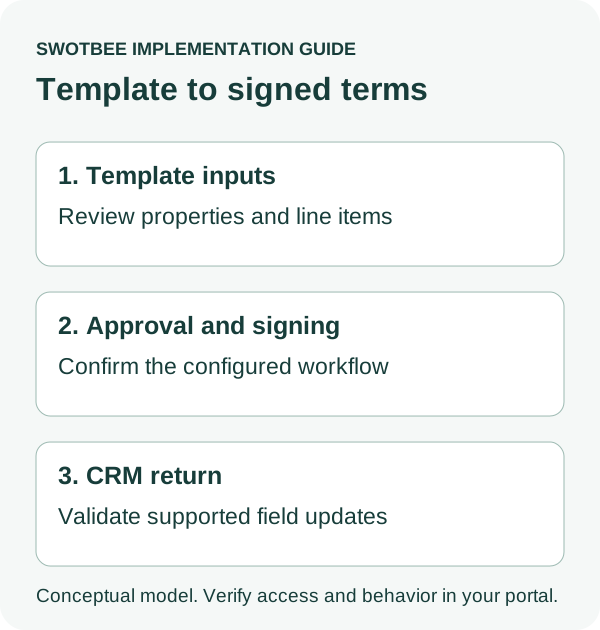
Copy this PandaDoc setup and writeback worksheet
Use one row per required handoff, and include a second agreement under the same customer. This filled example is a specification to adapt, not tested native field names or API syntax.
| Specification | Filled example | Required result |
|---|---|---|
| Source | Deal 601, agreement SUPPORT-01 | Separate project deal 602 is unchanged |
| Workspace/template | Services workspace, approved support template v3 | Correct connected workspace and version |
| Commercial input | USD 1,000/month plus USD 2,000 once | Recurrence and fee remain distinct |
| Approval | Scope reviewer plus defined discount review | Policy-approved version is sent |
| Return gate | Completed, required signatures satisfied | Sent alone cannot release final terms |
| Returned terms | Reviewed start date and selected service scope | Expected values on the intended agreement |
| File evidence | Completed-document reference | Executed version accessible to authorized users |
| Company guard | Agreement-specific edit reviewed separately | Other customer agreements retain their data |
| Replay/exception | Document ID + version + action purpose | No duplicate downstream handoff; failed return has an owner |
Add actual mapped field names and observed results during your pilot. If a destination is a separate commercial Contract, confirm a supported update route; this worksheet does not imply direct Contract writeback is included in the documented connector.
For an MSP, repeat the test with two sites or service agreements. For another B2B service firm, use two SOWs. Agreement identity should work without restricting the design to one industry.
Why is the document missing or not updating HubSpot?
Check workspace, link, automation authorization and field validation before assuming the integration is broken. A visible status can succeed while a required return fails.
| Symptom | First investigation | Acceptance evidence |
|---|---|---|
| Template unavailable | Current workspace and template location | Correct approved template selectable |
| Integration appears disconnected | Workspace/portal connection | Intended workspace connected |
| Variable is blank | Source object, case and source value | Expected data generated |
| Recurring fee appears once | Pricing-table versus Quote Builder path | Correct schedule displayed |
| Signed date does not return | Event, field type, format, mapping and permission | Validated date at destination |
| Another agreement changes | Document-to-deal link and destination ownership | Only intended agreement updated |
| Old documents behave differently | Inherited template automation configuration | Historical coverage explicitly tested |
Reproduce the failed step with an internal pilot and save its permitted evidence. Keep a queue with document ID, CRM target, required update, failure reason and owner. Retrying field return should not send a second agreement or invoice.
Avoid blanket “two-way sync” promises. The configuration must show which fields move, in which direction, and at which event.
What should pass before you roll out the integration?
Prove the complete sequence with representative pricing, recipients and failures. The checklist should validate the business result, not only app installation.
- Workspace, portal and automation authorizations match.
- Actual users have the required roles and feature access.
- Missing required input enters a review path.
- Correct template, legal entity and signers are selected.
- Monthly and one-time items retain their meaning.
- Changed terms follow the approval policy.
- Completion, partial signature and declined outcomes remain distinct.
- Required return values pass field validation on the correct record.
- Shared company data is protected from agreement-specific changes.
- Repeat events do not duplicate downstream actions.
- Historical documents and different workspaces are tested separately.
- Failed updates have an owner and a safe recovery procedure.
If final dates drive renewal automation, check them against the renewal properties guide and renewal reminders. A completed document alone does not establish the reviewed notice deadline.
Frequently Asked Questions
Can a HubSpot form or workflow create a PandaDoc document automatically?
Treat automatic generation as a separate requirement from manual creation in the CRM module. Confirm the actual recipe, middleware or API action, its licensing and required inputs. Test missing data, repeated submissions and approvals before allowing automatic sending; this guide does not establish a universal form-to-document action on every plan.
Can PandaDoc update HubSpot fields after signing?
Configured supported field-return automations can update HubSpot. Verify the event, source document, field types, destination permissions and correct agreement match. Do not assume every field returns.
Is HubSpot PandaDoc integration available on every PandaDoc plan?
The cited integration documentation lists Business and Enterprise. External Automations and conditional approvals have separate conditions. Confirm your actual account and chosen experience.
Why does the pricing look right but the billing handoff fail?
The document total may conceal a lost recurring schedule or repeated one-time fee. Reconcile line-item meaning, approved changes and the designated invoicing controller, rather than checking the total alone.
Should I choose PandaDoc or DocuSign?
Use the document integration hub to compare the required workflow. Choose by supported template, approval and return behavior in your account, not a universal synchronization claim.
A useful document integration preserves the approved agreement and returns the data operations actually needs.