This guide supports our HubSpot quote-to-cash implementation pillar.
A HubSpot QuickBooks integration should specify which system creates invoices, how customers and products match, and how finance reconciles payments and exceptions. The documented QuickBooks Online data-sync app supports configured record sharing. That does not make every invoice change, payment allocation, refund or accounting entry synchronize automatically.
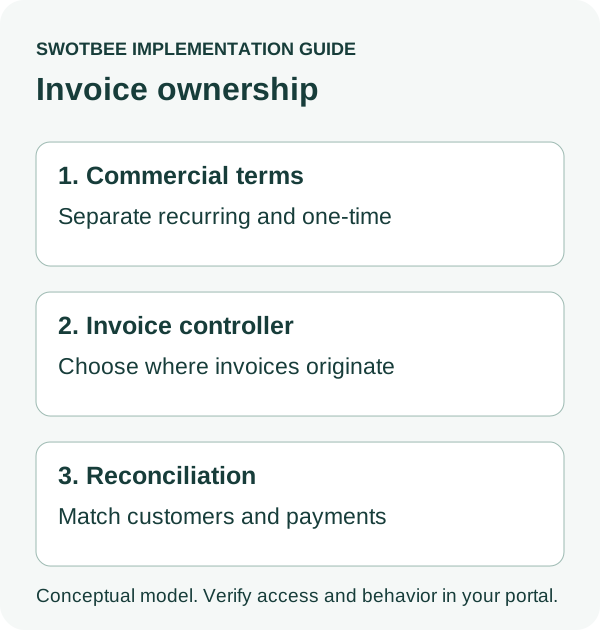
Start with the business result: sales needs reliable billing visibility, and finance needs one controlled invoice process. Connecting apps without choosing invoice ownership can create duplicate or conflicting records.
Three things you can take away:
- An invoice ownership policy: choose which system creates and edits each invoice family, and identify competing workflows that could issue the same invoice twice.
- A reconciliation worksheet: copy the filled service example to check the payer, agreement, billing period, recurring charge, one-time fee and payment evidence.
- A sync recovery and acceptance plan: use the troubleshooting guidance and rollout checklist to investigate failed matches and verify the intended records before expanding the sync.
Start with one invoice period. Have finance confirm the invoice owner and expected lines, then reconcile the resulting records using the worksheet before adding more customers.
If your accounting authority is Xero instead, use the Xero invoice ownership and reconciliation guide.
Which HubSpot QuickBooks integration are you configuring?
Identify the app and workflow before following a setup guide. HubSpot’s data-sync app and other deal-to-invoice connectors are different implementations.
This article focuses on the QuickBooks Online data-sync integration documented by HubSpot. Intuit separately documents a QuickBooks Online Advanced deal-import route, where HubSpot deals become draft invoices for approval. Do not combine instructions or infer identical access and writeback.
Record the app name, publisher, QuickBooks edition, HubSpot portal, region and connected finance entity. If you use QuickBooks Desktop, this Online guide does not establish compatibility. If middleware such as Zapier or a specialist connector is proposed, compare its exact supported actions with the native route before adding it.
The choice is not merely “native or custom.” Ask which route meets your invoice creation, matching, tax, amendment and exception requirements with the least justified operational complexity.
What does the QuickBooks Online integration sync with HubSpot?
The documented QuickBooks Online integration has object-specific scope and settings. Confirm field mapping and sync direction for each object rather than treating two-way sync as unrestricted editing.
HubSpot’s setup guide lists contact/customer, product, invoice and credit-memo mappings, with direction, conflict and filter controls. Custom mappings require Data Hub Starter or higher. Invoice-origin and payment rules constrain the return behavior. QuickBooks sandbox connections are unsupported.
Use this scope worksheet to record the actual configuration:
| Data family | Decision to record |
|---|---|
| Customer/contact | Which billing identity matches the accounting customer? |
| Product | Which SKU and finance-approved account mapping controls it? |
| Invoice | Which system originates it and which changes are permitted? |
| Credit/payment | Which allocation and history cases are actually supported? |
| Agreement/deal | How will invoice evidence be associated with the commercial record? |
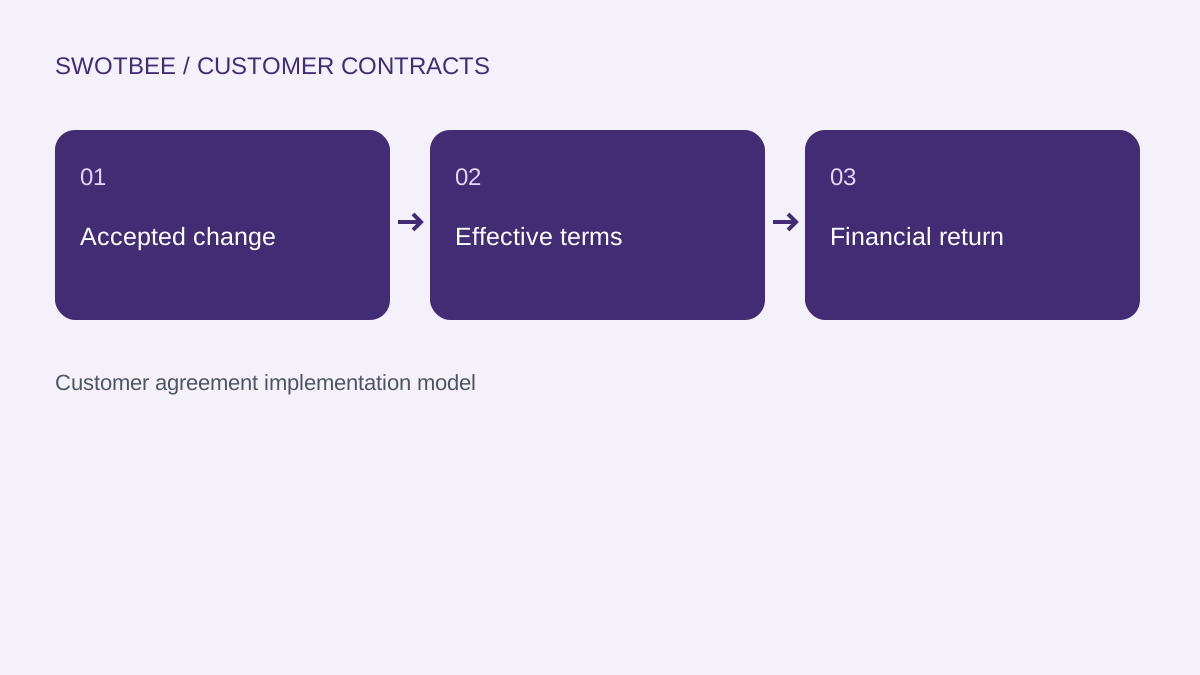
A commercial Contract records commitment; a deal records the opportunity; a subscription or Contract billing schedule may control recurring charges. None of those should be mistaken for the accounting invoice. Keep the architecture decision and QTC handoff explicit.
Where should you create invoices: HubSpot or QuickBooks Online?
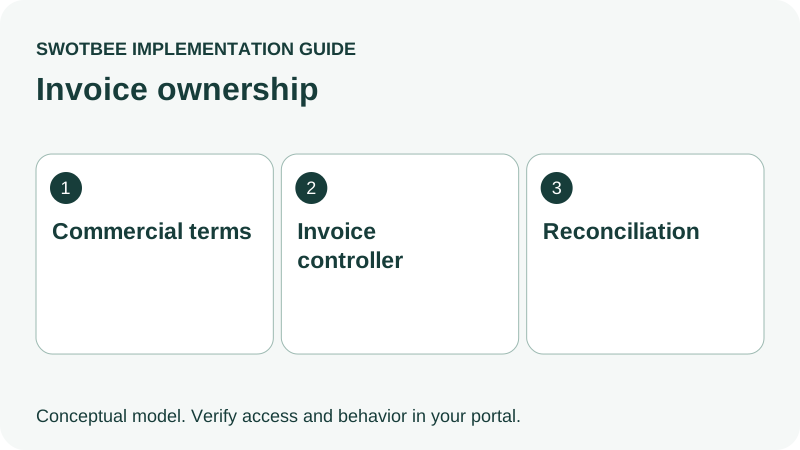
Choose where to create invoices for each invoice family and document where permitted changes occur. Keep the same business invoice from being issued independently in two systems.
For a service business, a practical policy might be:
| Invoice family | Controller choice to review | Guard to implement |
|---|---|---|
| New accepted recurring agreement | Approved billing system | Generate one invoice for the intended period |
| One-time setup/project | Approved invoicing system | Bill the fee once |
| Amendment/credit | Finance-approved process | Preserve original invoice and accepted change |
| Historical receivable | Existing accounting ledger | Do not reissue an old invoice as a new sale |
These are design choices, not a claim that the connector exposes a single “invoice controller” setting. Finance should approve the policy before automation.
HubSpot’s invoice guide distinguishes invoices created in HubSpot from invoices synced from QuickBooks Online. HubSpot-origin invoice edits and payment updates have specific restrictions; a QuickBooks invoice synced to HubSpot is not automatically associated with a deal. Record the source and permitted edit path for each invoice, instead of treating visibility in both systems as permission to edit either copy.
The same guide warns that two-way invoice sync can overlap with paid-invoice/sales-receipt workflow actions. Review those actions’ source filters before enabling another creation path.
For example, a payment arriving for an already synchronized invoice should update the intended payment evidence, not create a second invoice through an older workflow. Test that case before extending the flow to every customer.
How do you connect HubSpot to QuickBooks Online and configure field mapping?
Install the intended app, configure field mapping for each object separately and review the eligible records before activation. Do not default every object to two-way sync simply because the option exists.
The documented path starts in HubSpot Marketplace. After authorization, open Settings > Integrations > Connected apps > QuickBooks Online > CRM syncs. Follow the current setup reference for object selection, direction, mappings, conflict resolution and filters.
Prepare this configuration brief:
- Identify existing customer and product records in both systems.
- Select a controlled pilot cohort and explicit historical boundary.
- Write the intended direction and conflict owner for each object.
- Review field mapping for financial values, customer identity and each line item.
- Inspect competing invoice/payment workflows.
- Confirm who approves activation and owns any failed sync.
- Compare created records with the intended cohort after the first run.
Before activation, record the source property, destination field, direction, expected value and owner for each required mapping. For a custom mapping, verify the documented Data Hub entitlement and the field’s availability. If a user lacks permission to change the configuration, assign the review to an authorized administrator rather than introducing another connector to bypass it.
The sandbox restriction changes the test plan. Use permitted preview, review and internal pilot methods appropriate to the actual accounts. Do not represent this guide as a test already performed in your connected finance system.
How do you match customers, products and agreements?
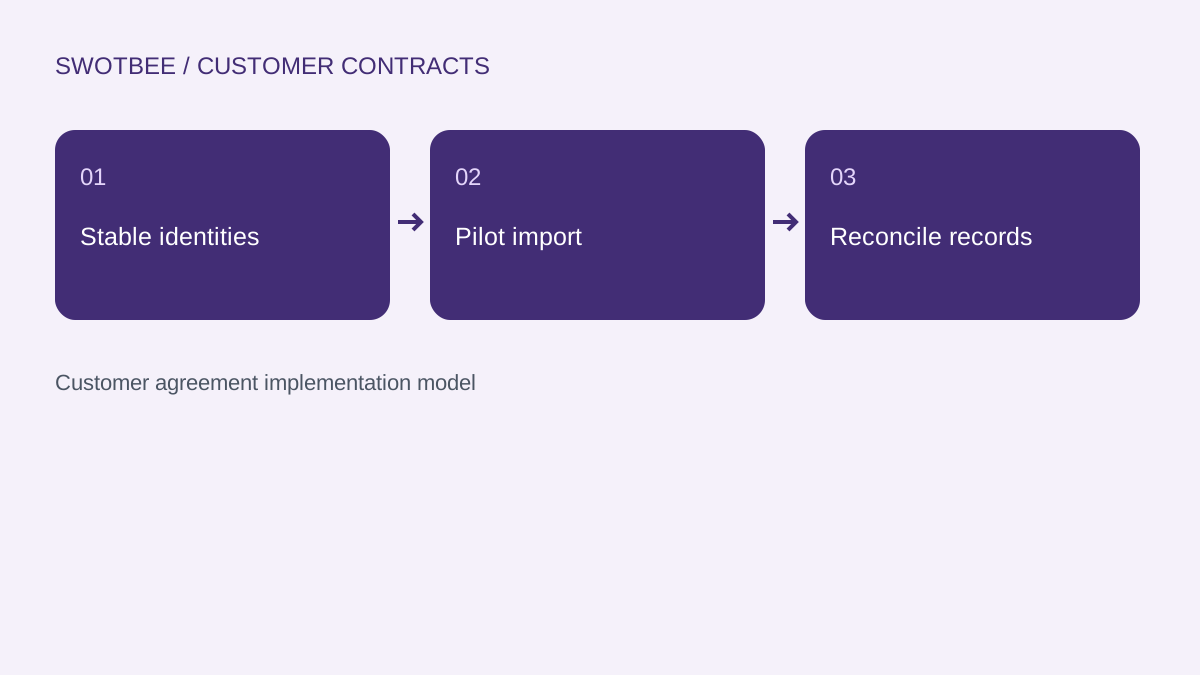
Define the billing identity separately from the customer brand and commercial opportunity. A correct invoice total attached to the wrong payer is still a failed handoff.
For an MSP, the reseller may pay while an end customer’s site receives service. For a consultancy, one corporate customer may have several SOWs and contacts. Record the contracting entity, payer, billing contact, agreement key and accounting customer reference separately where your model requires them.
The HubSpot troubleshooting guide documents customer-email mismatches and duplicate customer Display Names as sync-failure causes. Resolve identity deliberately; do not change a customer’s legal or accounting identity just to make an error disappear.
HubSpot’s invoice usage guide also says invoices arriving from QuickBooks are not automatically associated with deals. Plan and test any agreement/deal association required for reporting. “Visible in the invoice object” and “associated with the correct renewal deal” are different acceptance checks.
Use durable source identifiers in your reconciliation record. Product matching should include the approved SKU, billing meaning and finance classification, not only the displayed product name.
Copy this invoice reconciliation worksheet
Copy one row per invoice period and line. The example uses hypothetical IDs and amounts; it is a specification to adapt, not a tested connector export.
| Check | Filled service example | Required result |
|---|---|---|
| Agreement | SUPPORT-01, deal 701 | Invoice evidence maps to the intended agreement |
| Payer | Reviewed accounting customer C-88 | Correct billing identity, not another associated contact |
| Billing period | November 2026 | One invoice for this period |
| Recurring line | SKU SUPPORT, USD 1,000/month | Correct quantity, currency and period |
| One-time line | SKU SETUP, USD 2,000 once | Included in first bill only |
| First invoice subtotal | USD 3,000 before tax | Both lines present once |
| Later monthly subtotal | USD 1,000 before tax | Setup fee absent |
| Invoice identities | Source invoice H-901; counterpart Q-550 | Same business invoice, traceable across systems |
| Payment evidence | Allocation to Q-550/H-901 | Collection state distinguished from mere initiation |
| Exception owner | Finance, with RevOps for matching | Named person and next action recorded |
Add columns for source total, destination total, tax, credit allocation, processing fee, observed status, checked-at time and reviewer. Record a reason for differences rather than automatically overwriting one side.
The first subtotal is not annual recurring revenue. Under this example, the 12-month recurring commitment is USD 12,000 and the one-time fee is USD 2,000. Billing, contracted revenue and cash collection are separate measures.
For a second agreement under the same company, repeat the test and verify that its invoice associations remain distinct. This catches errors that a one-customer, one-invoice demo cannot reveal.
Why is an invoice not syncing to QuickBooks?
Inspect the native failure evidence, identify the cause and repair the intended record. Creating a replacement invoice before checking for a counterpart can worsen a duplicate problem.
The official troubleshooting guide describes the Failing to sync panel and invoice integration status. It also lists duplicate document numbers and prohibited edits to HubSpot-origin invoices in QuickBooks as failure causes.
| Failure family | Investigation | Proof of recovery |
|---|---|---|
| Customer missing | Intended billing contact and existing accounting identity | Correct counterpart customer selected |
| Duplicate customer/name | Existing customer mapping and naming policy | No accidental second accounting customer |
| Duplicate invoice number | Both ledgers and numbering configuration | One traceable business invoice |
| Changed financial data | Origin and permitted edit path | Corrected invoice reconciles in both systems |
| Invoice absent | Eligibility/filter and native failure panel | Expected invoice present once |
| Status mismatch | Payment allocation and processing state | Finance can explain the difference |
Keep the error message, source/target IDs, owner and corrective action in an exception queue. Do not disable finance controls, change closed periods or alter recognition policy as a casual connector fix.
What about tax, fees, refunds and multiple-invoice payments?
Validate each finance exception separately. Successful invoice sync does not prove complete tax reporting, fee accounting or refund reconciliation.
HubSpot’s current setup documentation constrains payments allocated across multiple invoices and historical payment scope. Its invoice guide says processing fees do not automatically create accounting expenses, and refunds/deletions have separate reconciliation requirements.
The official setup page references automated sales tax while other passages and the invoice guide describe tax restrictions or line-item workarounds. Do not generalize that mixed guidance into “all tax syncs” or “no international account can work.” Check your region, tax feature and actual invoice with finance before approving the path.
Build these cases into the pilot:
- A tax-bearing invoice in the customer’s actual jurisdiction.
- A partial payment and a payment allocated to several invoices.
- A credit memo, void and refund through the chosen controller.
- A collected payment with fees and a later payout.
- A financial edit attempted in the wrong system.
If Stripe processes the payment, use the Stripe integration guide to distinguish processing, data visibility and billing control.
How should you handle historical invoices and receivables?
Define historical scope separately from new-invoice automation. Preserve existing accounting identities and exclude historical records from unintended creation workflows.
Record the oldest date in scope, open receivables, existing counterpart IDs, invoice origin and payment evidence required. Compare expected and actual record counts after the initial sync, then inspect a sample of complete invoice chains.
A current invoice balance cannot reconstruct every historical cash movement. Likewise, a signed agreement does not establish that its receivable was paid. The customer document integration hub covers agreement evidence; accounting history needs its own reconciliation.
Where billing moves into HubSpot, keep the migration cutover distinct from this visibility setup. Compare the final old invoice, first new invoice and open balance before allowing a new controller to collect.
What should pass before you enable broader sync?
Approve broader activation only after the intended cohort reconciles and exceptions have owners. Include the cases that are costly to discover after live billing begins.
- App, edition, region and required mapping access confirmed.
- Invoice origin and permitted edits documented.
- Customer/payer and product identities match correctly.
- Historical filters and expected record counts reviewed.
- First recurring invoice and one-time fee reconcile.
- Later invoice does not repeat the setup fee.
- Imported invoice associates with the intended agreement where required.
- Existing paid-invoice workflows do not create a duplicate.
- Tax, payment allocation, credits, refunds and fees are reviewed.
- Failed matching and financial edits enter a named recovery process.
- Finance signs off on invoice and payment evidence.
For broader commercial changes, return to the HubSpot quote-to-cash guide. For recurring opportunity reporting, use the renewal pipeline guide rather than representing every monthly invoice as a new sale.
Frequently Asked Questions
How often does the QuickBooks integration sync?
The current setup guide describes scheduled detection intervals and a Sync now option. Do not treat the connection as guaranteed instantaneous. Record the expected interval in the operating checklist and investigate records that remain absent after eligibility and failure checks.
Does HubSpot integrate with QuickBooks Desktop?
This guide covers the documented QuickBooks Online app. Verify a Desktop-specific connector and requirements separately; Online documentation is not compatibility evidence.
Can I sync a purchase-order number?
Custom invoice mappings may be possible with the required Data Hub tier and supported QuickBooks field configuration. Confirm the field is available and test its return. Do not treat it as a default mapping.
Does two-way sync mean finance can edit everything in either app?
No. Invoice origin and permitted financial changes matter. Use the approved edit path and test the intended change.
Will sync handle all accounting automatically?
No such conclusion follows from a connected app. Finance still needs to approve tax, fees, recognition, allocations and reconciliation for the actual process.
Make the invoice handoff traceable before expanding the automation.
Request a discovery call to discuss your HubSpot and QuickBooks workflow.